Your own editor kit asset
Pulse assets such as items, quests and skills are put together from parts: you add cards to lists instead of filling a long details panel. The same editor is open to your own data assets. In this lesson you make a loot table whose entries are cards in the config workshop.
Replace MyGame with the name of your game module.
Create the data asset class
Choose Tools > New C++ Class…, pick Data Asset as the parent and name the class MyLootTable. Do not build yet.
Describe the loot table
Replace the header with this one. Entries is a list of instanced structs: each entry can be a different struct derived from FMyLootEntry. The meta BaseStruct names the base, so the workshop knows which types it can add.
Add an editor module
The workshop is editor code, so it needs a module of its own that is only built for the editor. Create the folder Source/MyGameEditor with this MyGameEditor.Build.cs. Then add the module to your .uproject with { "Name": "MyGameEditor", "Type": "Editor", "LoadingPhase": "Default" } and to ExtraModuleNames in your <Game>Editor.Target.cs.
Register the class
Add MyGameEditorModule.cpp to the folder. It registers your class with RegisterConfigAsset, so a double click on a loot table opens the workshop. Why: Config workshop.
Build and create an asset
Close the editor, build the editor target in your IDE and open the project again. In the Content Browser choose Add > Miscellaneous > Data Asset, pick MyLootTable and name the asset DA_BossLoot.
Open the workshop
Double click DA_BossLoot. The asset is the main node of a graph. The list Entries is a column of pins on it, and the palette on the left lists the two entry types.
Drag My Loot Entry Gold from the palette onto the + pin of Entries, then drag My Loot Entry Item onto the + pin as well. Click the arrow in the header of a node to edit its values in place. Rolls is a plain value of the asset and sits in the section node Table.
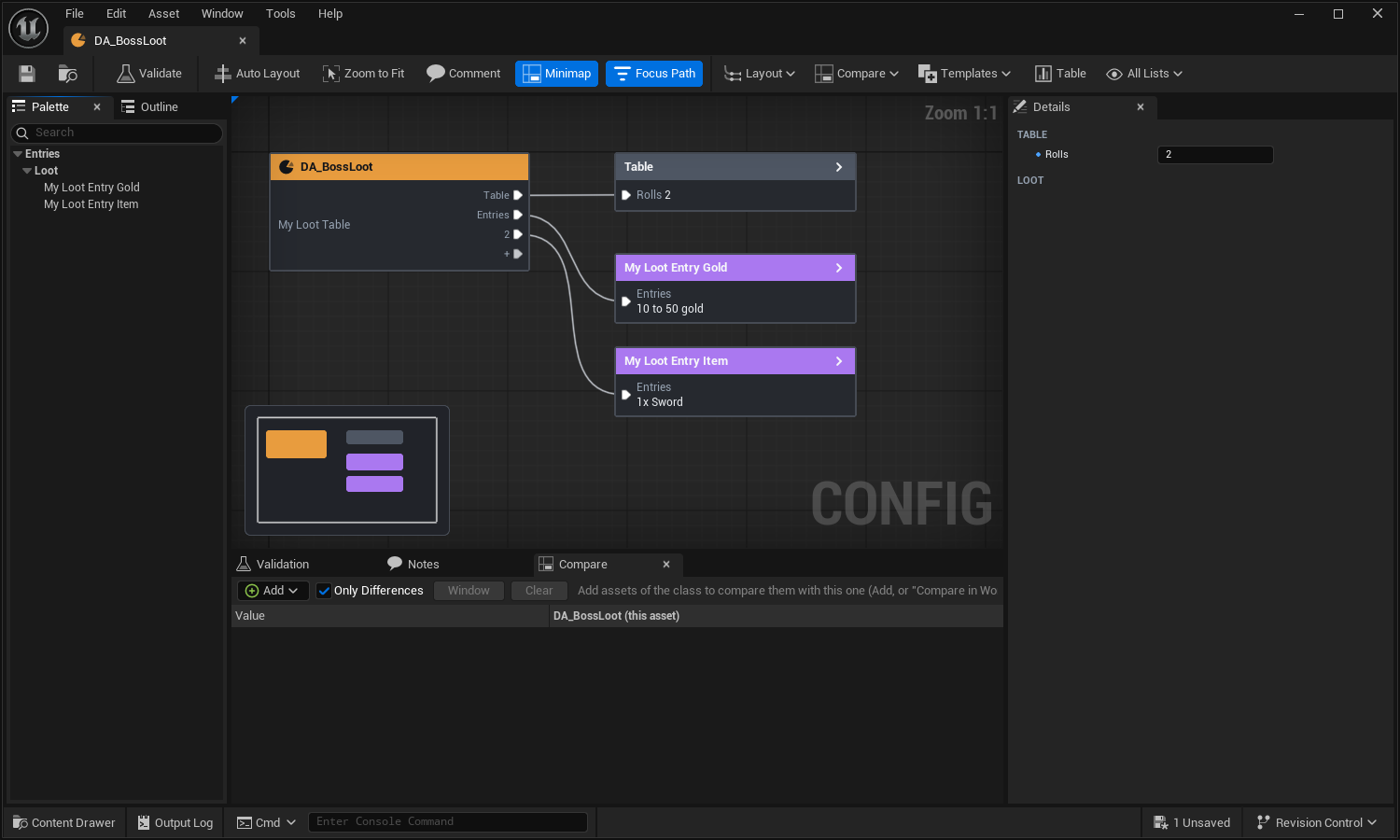
Result
Your own data asset is edited with the same cards, undo, validation and layout as the assets of the Pulse plugins.
From here you can add a preview of the asset, validation with quick fixes and templates, see the Config workshop page. The next lessons are in the docs of the Pulse plugin you use.