Pulse workflow
Every Pulse plugin is used in the same four steps, so a developer who knows one plugin knows them all:
- Set Up: what the project needs once (a component on the player state, a setting, an input action, an ini entry, a bridge to another plugin). Each step is checked, and a fix does it for you.
- Create: new assets of the plugin.
- Test: try the plugin in its example.
- Check: validate the setup and the assets.
The four names are the same in the menus, in the Pulse window, in the docs and in messages (Pulse::Editor::Workflow::GetStepName).
The Pulse window
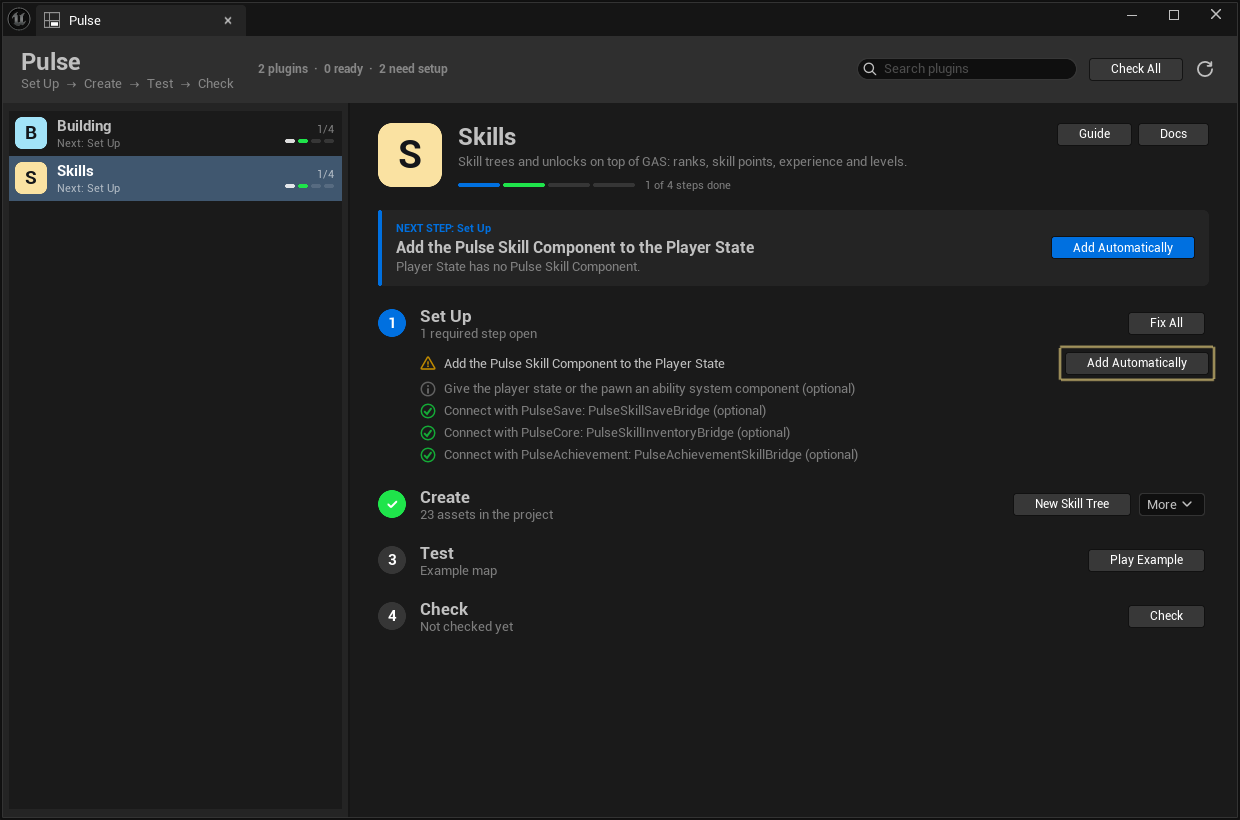
Tools > Pulse > Pulse, the button Pulse left of Play in the toolbar (its arrow has Check All, Pulse Tables and the Pulse Debugger) or the console command Pulse.Start open the Pulse window. On the left are the Pulse plugins of the project, on the right the selected one with the tabs Workflow, Docs, Versions and Settings:
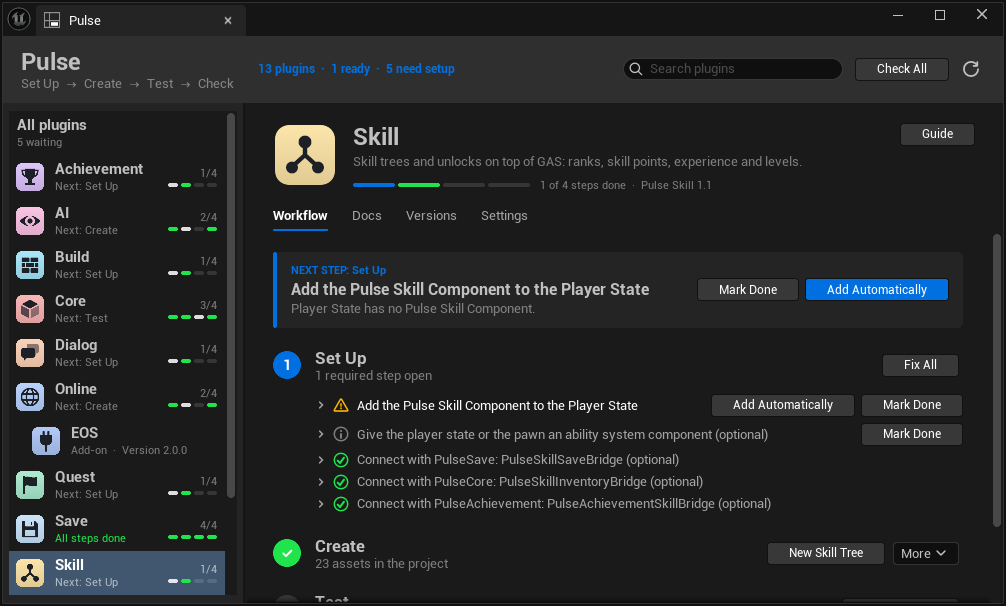
- List: All plugins first, then the plugins with a workflow (their next step and four bars, green: done; white or blue: the next one), the plugins without one (a grey letter and their version), add-ons indented under the plugin they extend, and Pulse Foundation last (“in Skill (Fab package)” when it came inside a Fab package). Bridges, toolsets and Pulse HUB have no row; they show under Versions and Settings of the plugins they connect. Installed Pulse plugins the project does not enable are under MORE PULSE PLUGINS (closed until you open it), with Enable on their page. The header counts the plugins, how many are ready and how many still need setup (a click opens All plugins); the search filters by name, and Check All checks every plugin.
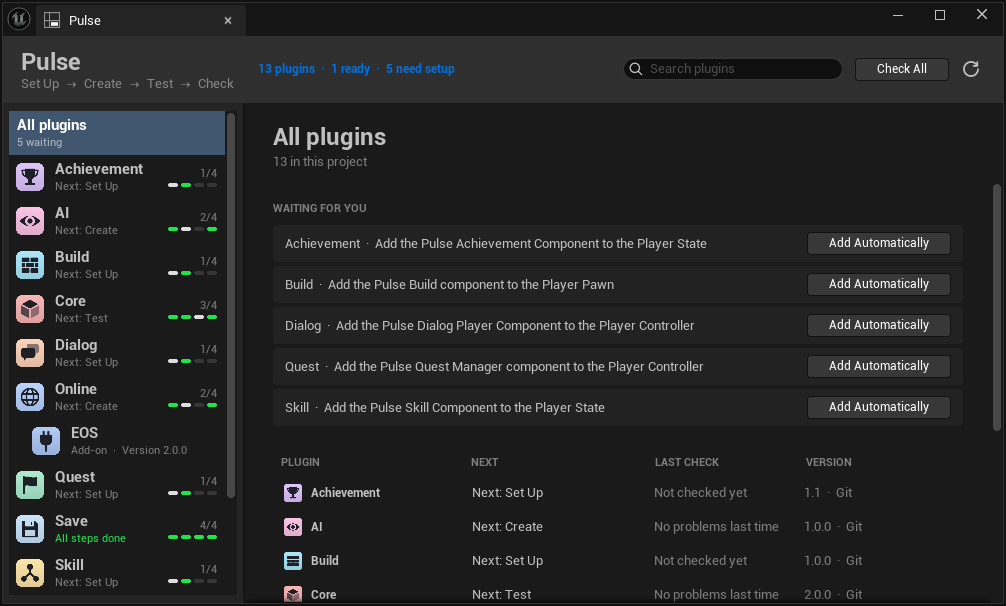
- All plugins: WAITING FOR YOU lists what needs you, each row with one button: a second active copy of Pulse Foundation (two Fab packages, see Fab packages and separate plugins), the problems of the last Check, and the first open required setup step of each plugin with its fix. Below, a table with the next step, the last Check and the version of every plugin, with how it came (“Fab package”, “Git”, “local build”). Its tab Settings shows the settings of every plugin by topic (General, Gameplay, HUD & UI, Online, Saving, World), to edit in place.
- Workflow: the next step and the four steps of the plugin (below).
- Docs: with Pulse HUB its docs window, else a link to the documentation in the browser.
- Versions: how the plugin came into the project (a Fab package with the version of the Pulse Foundation inside, a separate plugin from Pulse HUB, a Git checkout or a local build) and its add-ons and extras with version, folder and docs; an extra that is installed but not enabled has Enable. While two copies of Pulse Foundation are active, the card warns and offers Disable.
- Settings: the settings page of the plugin, edited in place: the same blocks as in Project Settings (its own, then those of its extras), with the topics of its blocks and Only changed (only values that differ from the defaults of the plugin) above them, search in the details panel, Open in Project Settings, and Editor Preferences when the plugin has some. Changes are saved like in Project Settings (
Default<Type>.ini, checked out first, or the file of Save changes to). Without settings pages it lists the sections of the plugin and of its bridges with Open. Game Core and the player settings (they belong to the settings menu of the game) are left out.
The Workflow tab of a plugin with a workflow:
- Next step: the box at the top names what to do now and has one button for it: the first fix of the setup, New …, Play / Play Example or Check.
- The four steps follow, each with a short line.
- Set Up lists every step with its state and fixes; the arrow in front of a row opens it: why the step is needed, what the check found, whether it works only after a restart and which files the fixes change. Fix All runs the first fix of every open required step. Optional steps (bridges, nice to have) have a neutral icon and never hold the plugin back; bridges to plugins the project does not have are one grey row (“Not needed: …”) that opens on a click. Mark Done ticks off a step the project does its own way, for example a skill component on the pawn instead of the player state: the step counts as done and shows “(marked done)”; Check Again removes the mark (see Steps done another way).
- Create counts the assets of the plugin in the project and creates a new one in the folder of the content browser (New …, More for the other asset types). Starter Content copies ready-made assets of the plugin into the project. Done once the project has an asset of the main type.
- Test (Play Example, or Play without an example map) opens the example map of the plugin, starts Play in Editor and gives the player what the plugin needs (see Testing). Done after Play in Editor with the setup done.
- Check checks the setup and validates the assets of the plugin in the project; the problems are listed with a button to open the asset (12, then Show all). Done when it passes; the result stays until the next check, and fixing the setup afterwards counts. After an update of the plugin the line says from which version.
A plugin without a workflow of its own (and Pulse Foundation) gets a simple one: Set Up has nothing guided yet (Learn opens Getting started of its docs), New creates assets of the data asset classes of its runtime modules (BlueprintType, not abstract), Play starts Play in Editor and opens the page of the plugin in the Pulse Debugger, and Check validates those assets.
Pulse.Start [Plugin|All] [Tab] [Anchor] opens the window on a plugin (its name, PulseSkill, or the name it shows, Skill) or on All plugins, on a tab (Workflow, Docs, Versions, Settings); on Workflow the anchor is the id of a setup step whose row opens. The tab stays for every plugin until the editor restarts. In C++ the same is Pulse::Editor::StartPage::ShowPlugin(Plugin, Tab, Anchor), with ShowOverview and RequestRefresh (Workflow/PulseStartPage.h).
The window opens once by itself, on the new plugin, when a Pulse plugin with a workflow is enabled for the first time, and the editor suggests Pulse HUB at startup while a Pulse plugin runs from a Fab package (Fab packages and separate plugins). Editor Preferences > Pulse > Foundation > Workflow turns these off and has Show Toolbar Button, Show Authoring Tools (Tools > Pulse > Docs Authoring with Write Workflow Docs) and Show Hints on Pulse HUB. The window refreshes after Play in Editor and after saving, and remembers per user which plugins were tested and checked and which one was selected last. The icon of a plugin is its Resources/Icon128.png; an icon file that several Pulse plugins share counts as a placeholder, and the window shows the first letter of the plugin in its color instead.
Below the list are a line with Restart Editor after plugins were enabled or disabled here, the hint “Get Pulse HUB (free)” while Pulse HUB is not enabled (Hide turns it off), and the ToolMenu PulseFoundation.StartPage.Hub that other plugins extend by its name, without a dependency; PulseHUB adds More Pulse Plugins, Updates and Pulse Docs. A missing bridge offers Install, which runs PulseHUB.Install <Bridge> when PulseHUB is there and opens the hub website otherwise.
Registering a plugin
A plugin describes its workflow once, in StartupModule of its editor module (Workflow/PulseWorkflow.h, Workflow/PulseSetupSteps.h). Register it before an early return for commandlets without Slate, so command line checks see it too:
using namespace Pulse::Editor::Workflow;
FPulsePluginWorkflow workflow;
workflow.Plugin = TEXT("MyPulsePlugin");
workflow.DisplayName = LOCTEXT("Name", "My Plugin");
workflow.Summary = LOCTEXT("Summary", "What the plugin is for, in one sentence.");
workflow.SetUp.Add(Steps::MakeSettingStep(UMyPluginSettings::StaticClass(), TEXT("bEnableFeature"), TEXT("True"),
	LOCTEXT("FeatureWhy", "The feature is off by default.")));
workflow.SetUp.Add(Steps::MakeBridgeStep(TEXT("PulseSave"), TEXT("MyPluginSaveBridge"), LOCTEXT("SaveWhy", "Saves the state of the plugin.")));
RegisterPlugin(workflow);
The other steps:
FPulseCreateEntry tree;
tree.Id = TEXT("Tree");
tree.AssetClass = UMyTree::StaticClass();
tree.DefaultName = TEXT("NewTree");
tree.bPrimary = true;                        // the "New" button of the Pulse window
tree.Color = FLinearColor(FColor(200, 140, 50)); // in the content browser, unset for the color of the plugin
workflow.Create.Add(tree);                   // no factory needed; MakeFactory only for one of your own

workflow.StarterContent.SourceFolders = { TEXT("/MyPulsePlugin/Examples/Kit") };
workflow.StarterContent.Description = LOCTEXT("StarterDescription", "The kit of the example map.");

workflow.Test.ExampleMap = FSoftObjectPath(TEXT("/MyPulsePlugin/Examples/LV_MyPulsePlugin_Example.LV_MyPulsePlugin_Example"));
workflow.Test.GrantCheat = TEXT("PulseMyPluginGrant");
workflow.Test.PlayCommands = { TEXT("PulseMyPluginMenu") };   // after the grant cheat, e.g. open the menu of the plugin
workflow.Check.ExtraAssetClasses.Add(UMyOtherAsset::StaticClass());
Remove it in ShutdownModule with UnregisterPlugin. A bridge that needs setup of its own (e.g. the saveable version of a component), has assets or an example registers a workflow too, with Connects naming the two plugins it connects. Its required setup steps show on both plugin cards: their bridge step stays open with the message and the fixes of the bridge’s first open step (Steps::CheckBridgeSetUp). Bridges without anything to set up or create need no registration; the bridge steps of the two plugins cover them.
Creating assets
Every asset type of a plugin is a Create entry; nothing else is needed.
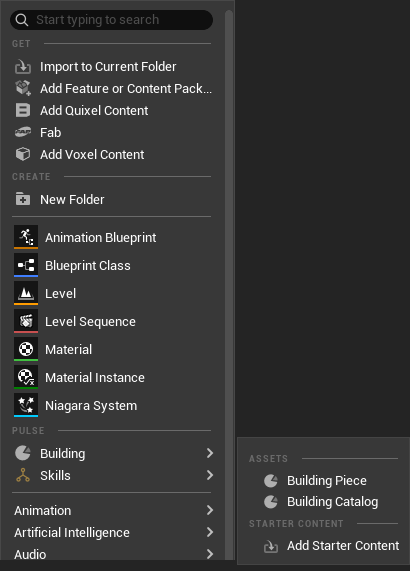
- **Add > Pulse >
** in the content browser lists the asset types and the starter content of each plugin. A new asset gets its name in place, like the other assets of the Add menu, and opens in its editor; classes of the config workshop open with the creation wizard. - Pulse asset factory (
UPulseAssetFactory,Kit/PulseAssetFactory.h): creates every Create class, so a plugin writes no factory.MakeFactoryof an entry is only for a factory of its own: a StateTree factory with the schema of the plugin, or a subclass ofUPulseAssetFactorythat sets up new assets inInitializeAsset. Classes of Create entries stay out of the engine’s Add menu, so nothing is listed twice. - Shared classes (StateTrees, Blueprints): an entry for a class that other plugins use too names the asset registry tags its assets have,
AssetTags:{"Schema", <schema class path>}for a StateTree with the schema of the plugin,{"NativeParentClass", FObjectPropertyBase::GetExportPath(<class>)}for a Blueprint of a class of the plugin (withMakeFactoryreturning aUBlueprintFactorywith that parent;MakeBlueprintEntry(Id, ParentClass)makes such an entry). Only those assets count for the plugin (Pulse window, Check), and the entry gets no asset definition of its own. - Ids of copies: Starter Content copies keep the gameplay tags of the examples. Checks for unique ids compare project assets with project assets and the examples of plugins (
/<Plugin>/Examples/...) with each other, never one with the other:Pulse::Validation::IsPluginExample(PackageName)andShareIdScope(PackageA, PackageB)(Validation/PulseValidation.h). - Asset definitions: a Create class without an asset definition gets one, with the name and color of the entry and the category **Pulse >
** in the filters of the content browser. For behavior of its own, e.g. a graph editor, a plugin derives `UPulseAssetDefinition` (`Kit/PulseAssetDefinition.h`) and overrides `GetAssetClass` and `OpenAssets`; name, color and category still come from the entry. - Starter content (
FPulseStarterContent): ready-made assets a project can start from. Add Starter Content (Add menu, Starter Content and More in the Pulse window) copies theSourceFoldersof the plugin to/Game/Pulse/<Plugin>, each folder as a folder there. References between the copies point to the copies, also the classes: an asset or component template of a copied Blueprint class becomes an object of the copy. Nothing outside the copies changes (unlike the engine’s Advanced Copy, which moves every loaded instance of a copied Blueprint, also actors of open levels, to the copy). Assets that are there already stay, and maps stay in the plugin (Play Example opens them). The copies are saved and marked for add in source control.Buildcreates more assets in code,AfterCreateconnects them (e.g. sets a catalog into the settings).
Scripts and tools use the same functions: MakeFactory, CreateAsset (no dialog, opens the asset), BeginCreateAsset (in place in the content browser) and CreateStarterContent.
The Create step is done once the project has an asset of the primary entry. A plugin whose users create something else sets CountCreated (e.g. Pulse Save counts the classes that implement its save interface) and CreateHint, the instruction the next step of the Pulse window and the guide show while nothing is created; CountCreated(Plugin) gives the count.
Testing
Play Example in the Pulse window (PlayExample) opens the example map of the plugin and starts Play in Editor. Once the local player of the first PIE instance has its pawn, it runs the grant cheat (Test.GrantCheat: gives the player what the plugin needs, e.g. a component, points, permissions) and then Test.PlayCommands as that player. Without an example map it plays the open level, so a plugin can be tried in the game itself. It does not start while the open level has unsaved changes or Play in Editor runs; Test.DebuggerPage opens that page of the Pulse Debugger with it.
Conventions for a plugin: the example map is /<Plugin>/Examples/LV_<Plugin>_Example with a game mode of its own, the grant cheat is Pulse<Plugin>Grant (a UPulseCheatExtension that forwards to the server), and the example also works with a plain Play.
Check
The Check step checks the setup of a plugin and validates its assets in the project (IsDataValid of the assets of its Create classes and Check.ExtraAssetClasses in /Game, plus Check.Validate of the plugin). It fails on errors and on a required setup step that is not done; optional steps and infos do not count.
Check All in the Pulse window (console Pulse.Check, also in the menu of the toolbar button) checks every plugin and shows All plugins: the problems per plugin and the open required setup steps with their fixes are rows of WAITING FOR YOU, and the table shows the last Check of each plugin. Show opens the problems on the Workflow tab of the plugin, where each one opens its asset, or selects its actor when the problem belongs to an actor of the level (Select moves the view to it). The fixes of a problem (FPulseValidationEntry::Fixes, e.g. from Check.Validate) are buttons next to it; press Check again afterwards. Saved layouts with the tab Pulse Check of earlier versions open All plugins instead:
Without the editor UI, e.g. in CI, the commandlet does the same and never fixes anything:
<Project>Editor-Cmd.exe <Project>.uproject -run=PulseCheck [-Plugins=PulseSkill,PulseBuild] [-Report=Saved/PulseCheck.json] [-WarningsAsErrors]
It logs each plugin and its problems (LogPulseCheck) and returns 1 if a Check failed (with -WarningsAsErrors also on warnings), else 0. -Report writes the results as JSON, relative to the project folder: per plugin plugin, name, ok, setUpDone, assetsChecked, errors, warnings, the setup steps (step, text, status, optional, message) and the problems (severity, text, object), plus errors, warnings and failed over all plugins. The functions behind it: RunCheck, MakeCheckEntries, HasCheckFailed, MakeCheckReport.
Guides
A guide walks through a task step by step. Guide on the Workflow tab of the Pulse window (or the console command Pulse.Guide [Id]) opens the guide panel:
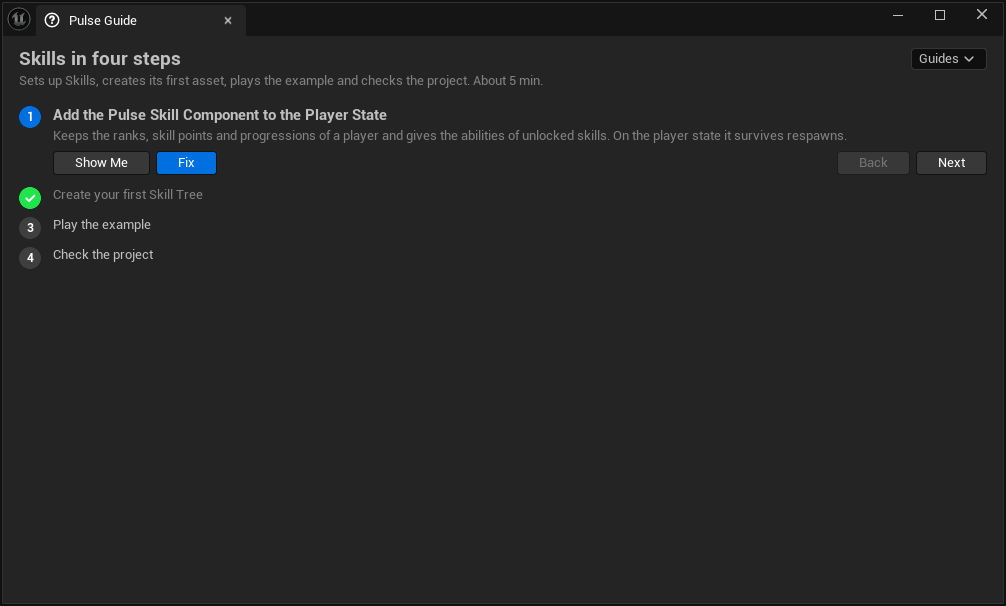
Each step says what to do. Show Me opens the place of the step and outlines the button to press; Do It does the step for you; Back and Next move by hand. While the panel is open it checks the steps twice a second and goes on by itself when the current one is done, so a guide also follows what you do without it. The panel remembers the guide and its step per user.
Plugins with learning paths have lessons instead: Guide opens the lesson to continue with (the first one that is not finished, by nav_order), and the tab Docs of the Pulse window lists every lesson under LEARN with its status and Start / Continue. A lesson in the panel shows where it belongs (Learn, lesson x of y), its result and the lessons it builds on; every step can be clicked, and All lessons and Next lesson switch lessons. Plugins without lessons keep the guide of their chain.
Every plugin with a workflow has a guide made from its chain (<Plugin>.Workflow, MakeWorkflowGuide): one step per required setup step (Show Me points at its first fix, Do It runs it), the main asset, Play Example and Check. A plugin adds guides of its own in its editor module:
FPulseGuide guide;                                  // Workflow/PulseGuides.h
guide.Id = TEXT("MyPulsePlugin.FirstQuest");
guide.Plugin = TEXT("MyPulsePlugin");
guide.Title = LOCTEXT("GuideTitle", "Your first quest in 5 minutes");

FPulseGuideStep& step = guide.Steps.AddDefaulted_GetRef();
step.Title = LOCTEXT("StepTitle", "Create a quest");
step.Text = LOCTEXT("StepText", "Add > Pulse > Quest > Quest in the content browser.");
step.WidgetTag = TEXT("Pulse.Start.MyPulsePlugin.Create");   // FTagMetaData of the widget Show Me outlines
step.BeforeShow = []() { Pulse::Editor::StartPage::ShowPlugin(TEXT("MyPulsePlugin")); };   // Workflow/PulseStartPage.h
step.IsDone = []() { return !Pulse::Editor::Workflow::FindProjectAssets(TEXT("MyPulsePlugin"), true).IsEmpty(); };
step.DoIt = []() { FText error; Pulse::Editor::Workflow::CreateAsset(TEXT("MyPulsePlugin"), NAME_None, FString(), error); };
Pulse::Editor::Workflow::RegisterGuide(guide);    // UnregisterGuide in ShutdownModule
Show Me finds widgets by their tag: the buttons of the Pulse window are tagged Pulse.Start.<Plugin>.<Step> (Create, Test, Check, Next, FixAll, Guide, Fix.<Step>.<Fix>, the rows of the setup Row.<Step>, the tabs Tab.<Tab>), the row All plugins Pulse.Start.Overview and the foot of the list Pulse.Start.Footer; give widgets of your own an FTagMetaData to point at them. HighlightWidget(Tag) outlines any tagged widget; the outline carries the tag Pulse.Guide.Highlight. FPulseGuideRunner is the logic of the panel (steps, done, Next, Back) without UI.
Docs from the workflow
The docs of a plugin follow the same four steps. getting-started.md has the sections ## Set Up, ## Create, ## Test and ## Check; each starts with a block made from the registration, and the text written by hand follows it. index.md has the table At a glance with one row per step. A block sits between two markers that markdown does not show:
## Set Up

[//]: # (pulse-workflow begin setup)
[//]: # (pulse-workflow end setup)

### Enable the plugin
...
Block names: setup, create, test, check (getting-started.md) and glance (index.md). Put the empty markers into the pages once; Pulse.Workflow.WriteDocs [Plugin] fills them from the registration (all plugins without a name). It only writes in source checkouts of a plugin (where docs/ exists) and never touches text outside the markers, so never edit between them by hand. The spec PulseFoundation.Editor.Workflow.Docs fails while a block is outdated, e.g. after a setup step or an asset type was added. Headless:
<Project>Editor-Cmd.exe <Project>.uproject -ExecCmds="Pulse.Workflow.WriteDocs" -nullrhi -unattended
The functions behind it are in Workflow/PulseWorkflowDocs.h (MakeStepBlock, MakeGlanceBlock, UpdateBlocks, WriteDocs).
Set Up steps
A step has an id, a kind, a short instruction, a reason and a check. The check returns the state (done, open, error, not needed), a message and fixes; the first fix is the suggested one. Ready-made steps:
| Step | Checks | Fix |
|---|---|---|
MakeComponentStep(Component, Targets, Why) | The player state, controller, pawn or game state of the default game mode has the component (also as a child class) or gets it automatically | Add Automatically, Add to the Blueprint (compiled, not saved), Open the Blueprint |
MakeSettingStep(Class, Property, Value, Why) | A value of a settings class | Sets it and saves it to the default config; opens the settings (asks for a restart when the property has ConfigRestartRequired) |
MakeIniStep(Ini, Section, Key, Value, bArrayEntry, Text, Why) | An entry of the loaded config (also custom configs), values compared without case | Adds it to Default<Ini>.ini, or to the file picked under Save changes to when the editor reads it (works after a restart) |
MakeNetDriverStep(DefName, DriverClass, FallbackClass, Text, Why, bOptional) | The first loaded net driver definition of the name uses the driver class (the engine takes the first one) | Removes the other definitions of the name (-NetDriverDefinitions=, e.g. the IP driver of BaseEngine.ini) and adds the new one to DefaultEngine.ini or the picked file the editor reads (after a restart) |
MakePluginStep(Plugin, Why) | An engine or project plugin is enabled | Enables it in the .uproject (after a restart) |
MakeBridgeStep(OtherPlugin, Bridge, Why) | Optional; only while the other plugin is enabled; once the bridge is enabled, open while a required step of the bridge’s own workflow is open | Enables the bridge, installs it with PulseHUB or opens its page; then the fixes of the bridge’s open step |
MakeChildComponentStep(Component, Child, Targets, Why) | The child version of a component replaces it (e.g. the saveable component of a save bridge); not needed while the project does not use the component | Turns on the automatic child when the component comes automatically, else opens the Blueprint that has the component |
MakeLevelActorStep(ActorClass, Why, bOptional) | An actor of the class is in the level open in the editor (e.g. an ocean) | Places one at the origin of the open level and selects it (one undo step, not saved) |
MakeStep(Id, Kind, Text, Why, Check) | Anything else | Your own fixes |
The component step reads the classes of the default game mode (Project Settings > Maps & Modes, Steps::GetProjectClasses). Where a component can go to several actors (pawn or controller), the first target is where the fixes put it.
Own fixes that edit ini text use the pure helpers Steps::AddIniEntry (a key, or an array entry once), Steps::AddIniLine (a whole line such as -Key=Value once) and Steps::SetNetDriverDefinition; they keep the line ends of the file. Write the file with PrepareFileForWrite / FinishFileWrite (source control).
FindProjectAssets(Plugin) lists the assets of the Create classes in /Game, CreateAsset(Plugin, EntryId, Folder) creates one without a dialog (with the Pulse asset factory, or the MakeFactory of the entry) and RunCheck(Plugin) runs the Check step.
RunSetUp(Plugin) checks every step, SummarizeSetUp counts done, open and failed steps, and ApplyFix(Plugin, StepId, FixId) checks a step again and applies a fix. Fixes that write files check them out in source control first (PrepareFileForWrite, FinishFileWrite); a read-only file that can not be checked out is reported with its path instead of being changed. Each fix names the files it writes (FPulseValidationFix::Files), so tools can check them out first or list them in a dry run.
Steps done another way
A check only knows the usual way. When a project does a step differently (the component sits on the pawn instead of the player state, a setting comes from a subclass, a bridge is not wanted), mark the step as done: Mark Done in the Pulse window, the fix Mark Done of a setup problem of MakeCheckEntries, MarkStepDone(Plugin, StepId, true) in C++ or MarkSetupStepDone over MCP. A marked step counts as done while its check finds it open or wrong: in RunSetUp (FPulseStepState::bMarkedDone, the message keeps what the check found), in the summary, in the Check and its commandlet and in the guides. Check Again (MarkStepDone(Plugin, StepId, false)) removes the mark.
The marks belong to the project, not to one user: they are saved in Project Settings > Pulse > Foundation > Workflow (MarkedDoneSteps in DefaultEditor.ini, checked out in source control first), so the team and build machines see the same setup. IsStepMarkedDone(Plugin, StepId) tells whether a step is marked.
Automatic components
A plugin can add its components to the actors of a player by itself, so it works without changing Blueprints: the skill component on every player state, the build component on the player pawn. A plugin declares them in its settings, in the category “Automatic Components”:
/** Adds the component of the plugin to every player state. */
UPROPERTY(Config, EditAnywhere, Category = "Automatic Components")
FPulseAutoComponent PlayerComponent;

UMyPluginSettings()
{
	PlayerComponent.Target = EPulseAutoComponentTarget::PlayerState;
	PlayerComponent.Component = UMyPlayerComponent::StaticClass();
}
FPulseAutoComponent (Components/PulseAutoComponents.h, module PulseFoundation) has a switch, the target (PlayerState, PlayerController, PlayerPawn: the pawn class of the game mode without spectators, GameState), an optional actor class that narrows the target and the component. Projects add more in Project Settings > Pulse > Foundation (AutoComponents; “Add Automatically” of a component step adds them there), and bEnableAutoComponents turns all of them off.
How they are added:
- When an actor spawns (before it initializes, on the server and on clients) and for actors that are in a level already, the subsystem
UPulseAutoComponentSubsystemof every game world gives it its components. Find functions such asFindComponentByClasswork as for any component. - A replicated component of a replicated actor is created on the server only; clients get it by replication.
- An actor that has the component already, or a child or parent class of it, does not get it again. Of a component and its child class the child wins, so a bridge can declare the saveable version of a plugin component.
- Nothing runs while no automatic component is enabled.
- The component is named
Pulse_<Class>_0(Pulse::AutoComponents::MakeComponentName) in every build: the name the editor and PIE gave it before, now also in packaged games, where the engine numbered names with a global counter. Save ids made from the component name are therefore the same in every session. The name holds on the machine that adds the component (the server for replicated components; the copy a client gets by replication keeps an engine name).HasFixedNametells whether a component carries it.
Pulse::AutoComponents::WouldAdd(ActorClass, Component, PlayerPawnClass) answers whether a class gets a component, and AddToActor adds one the same way from your own code.
MCP
The editor plugin PulseFoundationToolset (needs the engine’s ToolsetRegistry) offers the workflow as MCP tools for AI agents: ListWorkflows, RunSetUp, ApplySetupFix (with a dry run that lists the files a fix writes), MarkSetupStepDone, CreateAsset, CreateStarterContent, PlayExample, RunPulseCheck, ApplyCheckFix, WriteWorkflowDocs, ListGuides and OpenStartPage. See its README.