The Pulse window
Every Pulse plugin is used in the same four steps: Set Up, Create, Test, Check. The Pulse window shows them for all your Pulse plugins in one place. In this lesson you open it and bring one plugin from “needs setup” to a green check.
Open the Pulse window
Click Pulse left of the Play button in the toolbar, or choose Tools > Pulse > Pulse. The console command Pulse.Start does the same.
Read the All plugins page
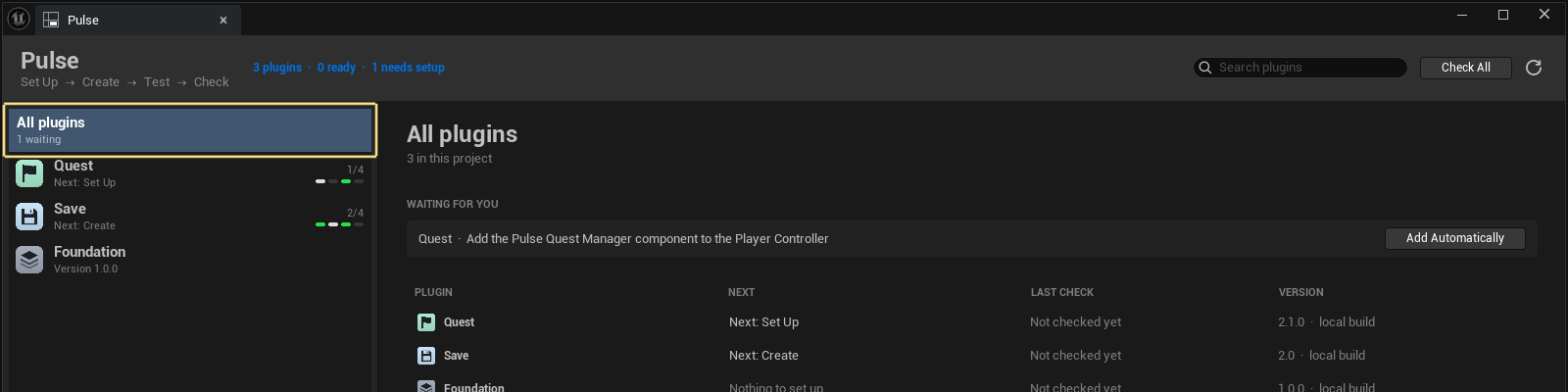
The window opens on All plugins. Under WAITING FOR YOU are the things that need you, each with one button. Below, the table shows the next step and the last check of every Pulse plugin.
Open a plugin
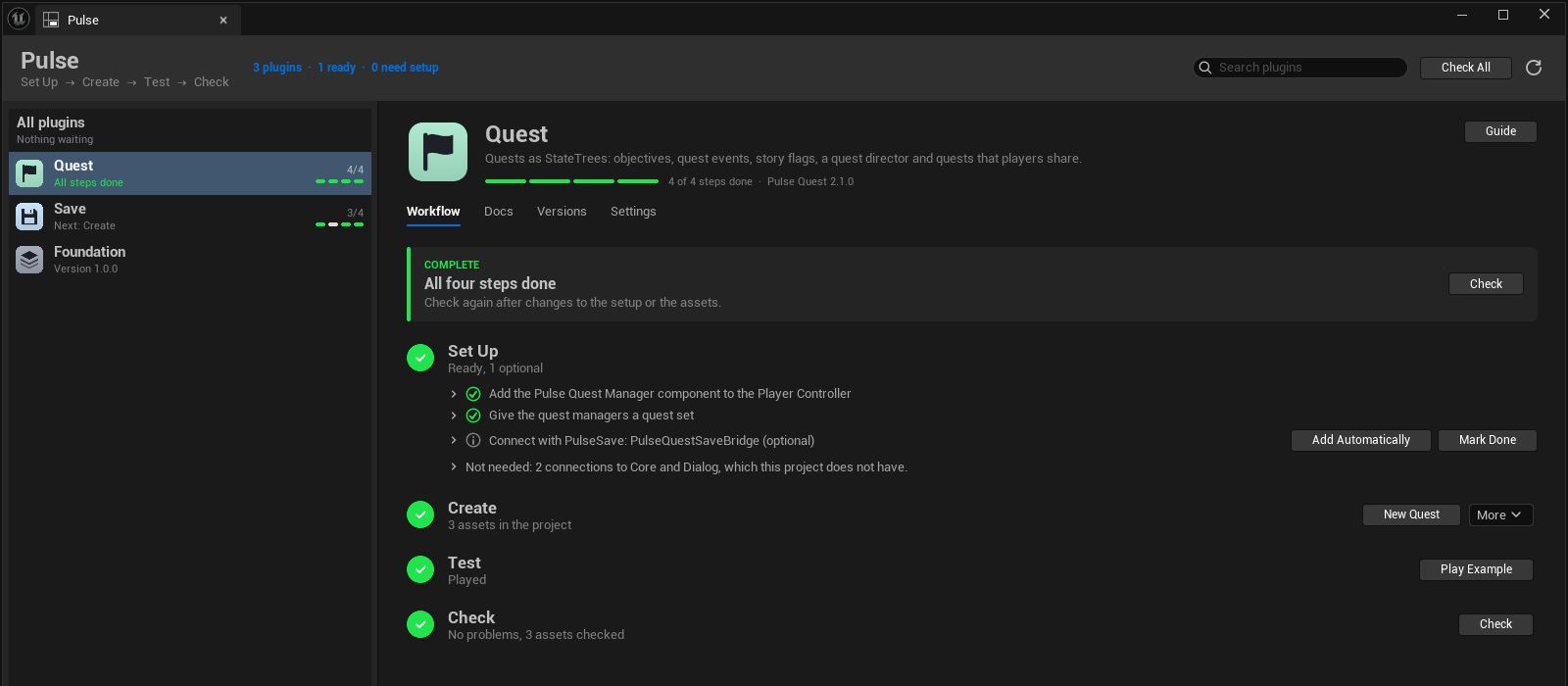
Click a plugin in the list on the left. Pick one with a workflow, for example Pulse Quest or Pulse Skill; plugins without one have a grey letter. The Workflow tab shows the four steps of the plugin, and the box at the top names the next thing to do.
If you only have PulseFoundation, install a plugin with Pulse HUB first. Why: The Pulse window.
Look at the other tabs
Open Docs, Versions and Settings once. Docs opens the documentation of the plugin, Versions says how the plugin came into the project, and Settings lists its pages in Project Settings.
Run the Set Up steps
In the Workflow tab, open Set Up. A row with a red or yellow mark is a step that is not done. Click its button to fix it, or click Fix All to fix every open required step. Optional steps, such as bridges, can stay open. A step without a button needs something else first; its row says what. Pulse Quest, for example, needs a quest set: Add Starter Content in Create makes one, then Use appears.
The arrow in front of a row explains why the step is needed and which files the fix changes.
Play the example
Press Play Example in the Test step (or Play, if the plugin has no example map). Move around for a few seconds, then stop.
Run Check
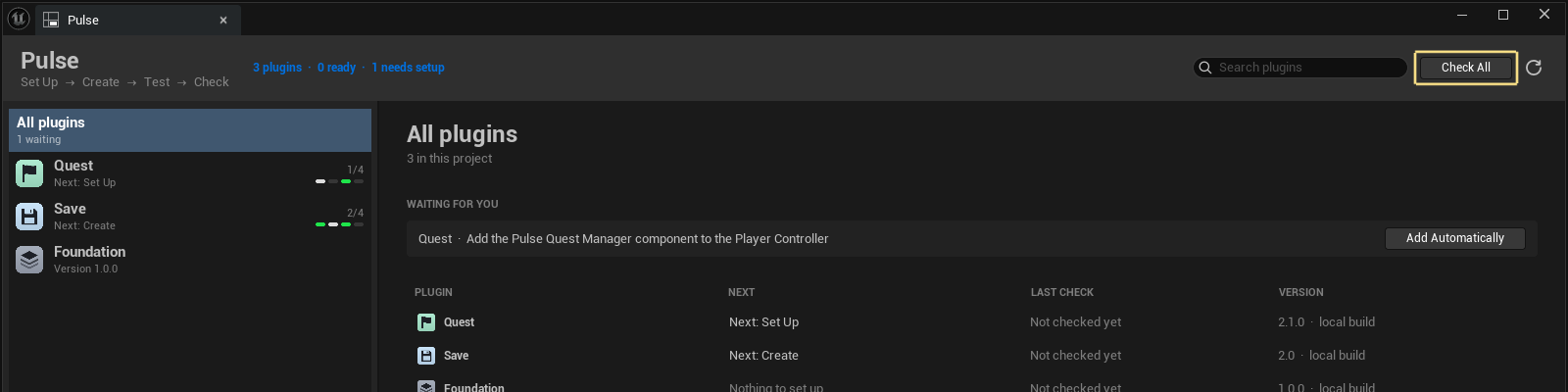
Press Check in the plugin, or Check All in the header of the window to check every plugin. Check validates the setup and the assets of your project. A green bar means nothing is left to do.
Result
The Set Up step is done, you played the example and Check is green.
Next: Plugins talk through messages. Background: Pulse workflow.