Editor kit
The editor kit (module PulseFoundationEditor, folder Kit/) is what the asset editors of the Pulse plugins are built on, so they look and work the same: details, validation and notes tabs, a docs button, graphs with card nodes, comment boxes, auto layout and a minimap, card lists for instanced struct properties and the config workshop for assets that are put together from parts, a preview viewport with handles and labels, level editor modes with tools (level tools) and views of plugin data in the viewports. Plugin editors (and your own) use it instead of writing these parts again. The skill tree editor of PulseSkill and the piece workshop of PulseBuild are built on it.
Asset editors
FPulseAssetEditorToolkit is the base of an asset editor. It brings:
| Part | What it does |
|---|---|
| Details tab | The asset, or the objects the subclass shows (SetDetailsObjects) |
| Validation tab | Problems of the asset with severity icon and object; the tab title shows the count. Click a problem to go to its object |
| Notes tab | Free text per asset, stored in the package metadata (saved with the asset, not cooked) |
| Validate and Docs buttons | Validate runs CollectValidation and shows the tab; Docs opens the plugin’s docs page |
| Refresh | After undo, redo and outside changes of the asset (IsObjectRelevant), on the next tick: OnRefresh, then validation |
A subclass overrides what it needs:
| Function | Default |
|---|---|
OnRefresh | Nothing; rebuild your views from the asset |
CollectValidation | IsDataValid of the asset |
OnValidated, OnValidationEntryClicked | Nothing; details show the clicked object |
IsObjectRelevant, IsWritingAsset | The asset and its sub objects; never writing |
GetDocsPluginName, GetDocsPage | Empty: no Docs button |
FillToolbar | Nothing; add your own buttons |
Build a layout with the tab ids DetailsTabId, ValidationTabId and NotesTabId and call InitPulseAssetEditor.
Docs link
Pulse::Editor::Kit::OpenDocs(Plugin, Page) opens a docs page: in PulseHUB if it is installed (console command PulseHUB.Docs <Plugin> [Page]), otherwise the DocsURL of the plugin descriptor plus <page>.html in the browser. GetDocsUrl and MakeDocsUrl build the address only.
Validation and notes
Pulse::Editor::Kit::ValidateObject(Object, Entries)runsIsDataValidand adds anFPulseValidationEntry(severity, text, object) per problem. It reads the tokenized text of the issues, so messages added withFDataValidationContext::AddMessageare not empty.- Problems can name the value they belong to: in
IsDataValid, add them withPulse::Validation::AddIssue(Context, Severity, Text, Path)(module PulseFoundation,Validation/PulseValidation.h, editor only) instead ofAddError/AddWarning. The path (“Traits[2]”, “Traits[2].Costs[0]”, a property name;MakeElementPathbuilds list elements) becomes theNodeKeyof the entry, so graph editors show the problem on that node and select it on click. Elsewhere the message reads as before. - Entries have quick fixes (
FPulseValidationFix: text, tooltip,Apply), shown as buttons; a fix is one undo step. SPulseValidationPanelis the list widget,SPulseAssetNotesthe notes widget; both work outside the toolkit too.GetAssetNotes/SetAssetNotesread and write the notes of any asset.
Graph editors
FPulseGraphAssetEditorToolkit adds a graph to the asset editor:
- Graph tab with the minimap in the lower left corner;
- optional side panel tab (
MakeSidePanel, for example totals or the path to the selection); - Auto Layout, Zoom to Fit, Comment (
C), Minimap and Focus Path on the toolbar; - Focus Path highlights the selected nodes and everything they need (
UPulseEdGraph::CollectHighlight) and dims the rest; - validation problems are shown on the node of their
NodeKey(GetSelectionKey), or on the nodes whoseGetDetailsObjectis the object of the problem; clicking a problem jumps to the node; - the selection shows the objects of the nodes in the details panel and survives rebuilds.
Call InitPulseGraphEditor with the graph and a layout name (change its version suffix when the tabs change).
The graph
UPulseEdGraph is a transient mirror of the asset: the asset is the only source of truth, the graph is built from it and every edit changes the asset first. A subclass:
- implements
BuildGraph(create nodes withCreateTransientNode, link their pins); - returns the editor-only comment array of the asset in
GetCommentStorage(or nothing, then there are no comments); - writes edits inside an
FPulseGraphEditScope: it opens a transaction, callsModifyon the asset, marks the graph as writing (the editor ignores its own changes) and callsOnAssetEditedandPostEditChangeat the end.
bool UMyEdGraph::RemoveEntry(UMyEntry* InEntry)
{
	{
		const FPulseGraphEditScope scope(this, LOCTEXT("RemoveEntry", "Remove Entry"));
		GetMyAsset()->Entries.Remove(InEntry);
	}
	RemoveNode(FindNode(InEntry));
	return true;
}
The base also has GetDirection (top to bottom or left to right), GetAccentColor, GetLinkLabel (text on a link, e.g. “Rank 2”) and AutoLayout. GetLinkStyle returning EPulseGraphLinkStyle::Arrows draws the links of flat nodes like a state machine: straight arrows from the edge of one node to the edge of the other, links in both directions side by side with their labels beside them, so nothing crosses wherever the nodes stand. The nodes then show no pins; a link is dragged from the edge of a node onto another node (UPulseEdGraphSchema::ResolveArrowPins turns the drop into the input of that node; call it first in CanCreateConnection and TryCreateConnection).
Store comments in the asset as editor-only data:
#if WITH_EDITORONLY_DATA
	UPROPERTY()
	TArray<FPulseGraphEditorComment> EditorComments;
#endif
FPulseGraphEditorComment (EditorData/PulseGraphEditorComment.h) is in the runtime module PulseFoundation, so runtime assets can hold it. Moving, resizing, renaming and recoloring a comment writes it back (UPulseEdGraphNode_Comment).
Nodes
UPulseEdGraphNode is drawn by SPulseGraphNode in the look the graph picks with GetNodeStyle:
- Flat (default): a header bar in the node color with a white icon and the title (the text turns dark on light colors), a dark body with the lines, triangle pins (left and right, or on top and at the bottom in top to bottom graphs; pin names only when a side has several pins), a gold outline when selected and a red or orange one for validation problems.
- Card: accent strip, big icon, title, subtitle, pips, summary lines and bar pins.
Fill it by overriding:
| Function | Content |
|---|---|
GetDetailsObject | Object of the asset the node stands for (details, double click, validation) |
GetCardTitle, GetHeaderIcon | Title (default: node title); white icon of flat headers, tinted with the header text color |
WritePosition | Store the node position in the asset (Modify only, no PostEditChange) |
GetCardSubtitle, GetCardIcon, GetCardFallbackIcon | Second line, icon texture, icon brush when there is no texture |
GetCardAccentColor, GetCardPipCount, GetCardPipText | Color, number of dots, text next to them |
GetCardLines | Lines (FPulseGraphCardLine: label, text, color; FPulseGraphCardLine::Rich with Graph::Muted("After") for quiet words) |
GetCardWidth, GetDefaultSize | Card width; size for the layout when the widget size is unknown |
GetCardHeaderNote | Short text after the title in the header of flat nodes, cut off with dots (compact nodes) |
Give the classes of your nodes white SVG icons for flat headers (for example Resources/Icons/White/, registered as ClassIcon.<Class>.White), so they read on every header color.
Pins of flat nodes report a double click to UPulseEdGraph::OnPinDoubleClicked; graph editors can show a second tab next to their left panel (MakeLeftPanelExtra) and a tab next to validation and notes below the graph (MakeBottomExtra, brought to the front with ShowBottomExtra).
Reroute nodes (UPulseEdGraphNode_Reroute, drawn as the knot of the engine) lead links around other nodes. A double click on a link calls UPulseEdGraph::InsertReroute; graphs that store reroute nodes override it together with RemoveReroutes and OnRerouteMoved and create the nodes again when they build (the config workshop does). Graphs without an override ignore the double click.
Schema and drawing
UPulseEdGraphSchema adds Add Comment to the context menu, deletes comments and draws the links with FPulseGraphConnectionDrawingPolicy: thin light links in flat graphs (the triangle pins show the direction; the focus path is white), accent links with arrows and links spread over bar pins in card graphs, a label chip near the input end and faded links outside the focus path. Derive the schema of your graph from it and call Super in GetGraphContextActions and SafeDeleteNodeFromGraph.
Layout
Pulse::Editor::Kit::Graph::ComputeLayeredLayout is the layout as pure logic (specs PulseFoundation.Editor): layers by the longest chain of links, helper nodes on long links, barycenter sweeps that keep the order with the fewest crossings (starting from the current positions), and placement near the middle of the neighbors without overlap. UPulseEdGraph::AutoLayout runs it with the real card sizes and fits comment boxes around the nodes they contained.
Card lists
Lists of instanced structs and instanced objects (traits, rules, costs, conditions, grants) are shown as cards in the details panel instead of the engine rows. A card shows its type at a glance and only what you changed:
- a strip and a tile in the color of the category of the type. The category is the meta
Categoryof the struct or class (the last part after|); the tile shows the icon of the metaCardIcon(a brush of the editor style, e.g.Icons.Heart), else the first letter of the type. Types without a category are grey; - the type name bright and, collapsed, the changed values as pairs of a grey field name and a bright value (“Max 120 Loss Per Use 0.5”). A flag that is on shows its name, one turned off says “off”, lists name their first two entries and count the rest (“Abilities GA_Shoot, GA_Slash +1”);
- expanded, the category and one sentence of what the type does (the first sentence of its tooltip, so of the comment above the struct) instead of the summary, and below it the values in rows with a fixed name column. Changed values have a bright name with a blue dot, the reset arrow shows when the mouse is over the row.
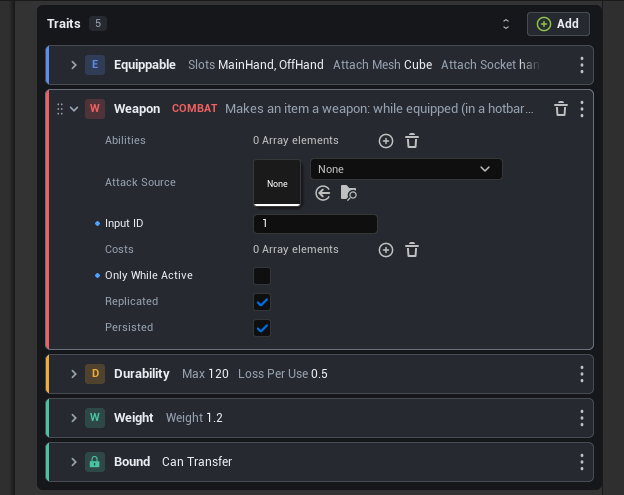
Under the mouse a card gets a brighter outline and shows a grip (drag the card to sort the list; a blue gap shows where it lands, and the move is one undo step), Duplicate (lists that allow a type more than once) and Delete. The menu (⋮) has Change Type, Move Up and Move Down. Click the header to open or close a card.
The states a card can be in:

- No type: a yellow strip, “No type” with Choose type in the card and the hint that the entry does nothing yet.
- A type twice in a list that holds each type once: the later card is marked, says why and has a Delete button; only the first one is used.
- Several objects selected: “N items selected”, the cards show their summaries only and values that differ are “Mixed”. Select one object to edit the values.
- Empty list: what belongs in the list (the first sentence of its tooltip) and a button “Add
". The entry name comes from the list name ("Costs" → "Add cost"); set `meta = (PulseItemName = "drop")` on the property where the singular is different. - Narrow panels: the summary fades out at the right edge and the name column gets narrower (80 to 170 pixels).
+ Add (and Choose type) open the type picker: types grouped by category in the colors of the cards, each with its tile and one sentence (the full text is in the tooltip). Typing searches names, categories and descriptions, the arrow keys move, Enter picks, Esc closes. In lists that hold each type once, types in the list are greyed out (“in list”).
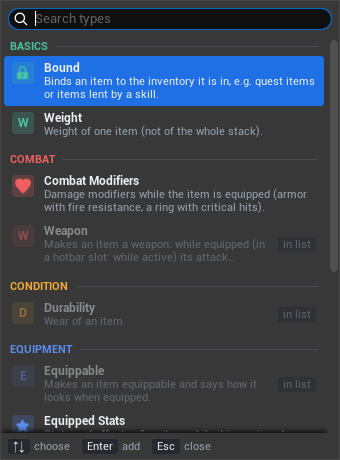
The colors of the common categories (Combat, Equipment, Condition, Basics, Loot, Costs, Rewards, Logic, Context, Blueprint, Construction, Placement, Ownership, Abilities, Effects, Tags, Use, Limits, Items, Attributes, Interaction, Quests, Dialogs, Skills) can be changed under Editor Preferences > Pulse > Foundation > Cards (UPulseCardSettings, saved per user). Every other category gets a color of a fixed palette by its name, the same in every project and session. Give the types of a list categories that tell them apart, and an icon where one fits:
/** Binds the item to the player who picks it up. It cannot be dropped or traded. */
USTRUCT(BlueprintType, meta = (DisplayName = "Soulbound", Category = "Basics", CardIcon = "Icons.Lock"))
struct FMyItemTrait_Soulbound : public FPulseItemTrait
Register the base structs in an editor module; the runtime structs stay unchanged:
// StartupModule of the plugin's editor module
Pulse::Editor::Kit::Cards::RegisterBaseStructPath(TEXT("/Script/PulseInventory.PulseItemTrait"), true); // each type once
Pulse::Editor::Kit::Cards::RegisterBaseStruct(FMyRule::StaticStruct());
Lists of instanced objects (UPROPERTY(Instanced) TArray<TObjectPtr<UMySkillGrant>> with EditInlineNew classes) work the same way: register their base class with Cards::RegisterBaseClassPath(TEXT("/Script/PulseSkill.PulseSkillGrant")). The type picker lists the classes that can be created inline; a new entry is an object owned by the object that holds the list. Only registered Pulse types are affected, never lists of the engine or of other plugins.
Card containers
Lists at the top level of an asset, component or settings class are shown as card containers (SPulseCardList): one dark frame with the title of the list, the number of entries, Collapse all / Expand all and + Add, the cards inside it. Which cards are open is remembered for the editor session; a new entry starts open.
Changes inside a card go through the handle of the entry, so undo, the dirty state and PostEditChangeProperty of the asset work as with the engine rows. Instanced object properties (Instanced, EditInlineNew classes) get the class picker of the kit: pick a class (Blueprints too), clear the object, open its Blueprint or Create New Blueprint…; the values of the object show below it. Value names show the tooltip of their property. The values are drawn by SPulseValueRows (Kit/SPulseValueRows.h): compact rows of a struct (through an IStructureDataProvider) or of objects, with nested values, reset arrows and edit conditions; editors can use it wherever a details panel is too big. The categories of objects follow PrioritizeCategories of their class (UCLASS(meta = (PrioritizeCategories = "Domain Simulation Bake"))), as in details panels; without it the engine puts categories with CallInEditor buttons first, sorted by name. The settings of level tools are drawn this way.
Register the classes whose lists become containers, by path:
Pulse::Editor::Kit::Cards::RegisterCardClass(TEXT("/Script/PulseInventory.PulseItemDefinition"));
// ShutdownModule
Pulse::Editor::Kit::Cards::UnregisterCardClass(TEXT("/Script/PulseInventory.PulseItemDefinition"));
A class has one details customization per name. Classes that have their own customization call Cards::CustomizeCardArrays(DetailBuilder) in CustomizeDetails instead. Editors can also put an SPulseCardList into their own panels with the handle of an array property.
Lists of instanced structs nested in structs (for example the costs inside a construction trait) and lists of classes without registration get card rows: each entry is a card header with its values below it. Lists of instanced objects nested in structs (the grants of a skill rank) keep the engine rows for now.
A single property can opt in with meta = (PulseCards) and out with meta = (NoPulseCards); the console variable Pulse.Editor.Cards 0 switches the cards off. The picker leaves out structs with the meta Hidden, Deprecated or Abstract. Pulse.Editor.ShowDetails [width] <object path>... opens a details panel of several objects, to check how your lists look with a multi-selection.
The summary comes from, in this order:
- a provider registered with
Cards::RegisterSummary(Struct, Provider)(also used for child structs), shown as free text; - the struct meta
PulseSummary, e.g.meta = (PulseSummary = "{Amount} points, {RefundPercent}% back"); - the values that differ from the defaults of the struct, as pairs (see above).
Own widgets get the same parts from Kit/PulseCards.h: GetTypeColor, GetCategoryColor, GetTypeCategoryName, GetTypeLetter, GetTypeIcon, GetTypeDescription, GetFirstSentence, MakeAddLabel, and MakeSummaryParts with MakeSummaryMarkup (rich text with <muted> names) for the pairs. The entry nodes of the config workshop use them too: the header has the color of the category, collapsed nodes show the pairs, open nodes the category and the sentence above their values.
PulseFoundation registers conditions, costs and rewards, the lists of every plugin. PulseBuild registers its traits, rules, permissions, piece sources, states and placement modes; PulseCore its item and inventory traits and the combat extension points. Card containers: the build piece definition, build component and build settings; the item definition, inventory component, inventory layout preset, recipe, interactable component, combat component and settings, melee and ranged attack abilities and the inventory UI settings; the skill definition and the skill progression.
Config workshop
The config workshop is an asset editor for assets that are put together from parts: traits, rules, costs, sockets, grants. It opens as a tree (see The tree) in two columns: the asset on the left like the StateTree editor, the chosen list in the middle as cards, a table or a stack with the values of the selection, the preview on the right. Tree | Graph in the toolbar switches to the graph, the other view, with the same selection; the choice is kept per asset class and user. The tree needs no palette, outline, details or tabs below: it closes them, and the graph opens them again.
The graph is not a flow. It opens on the overview: one box per property category (“Piece”, “Look”, “Placement”), each with its section node (the plain values of the category) and the entries of the lists in that category. A section whose category has the name of a list is called “
The former view, one tree from a main node with a pin per entry, is still there: Layout > Classic Tree (option bClassicGraph of the workshop preferences). The layout options, the focus button and collapsible lists below belong to it.
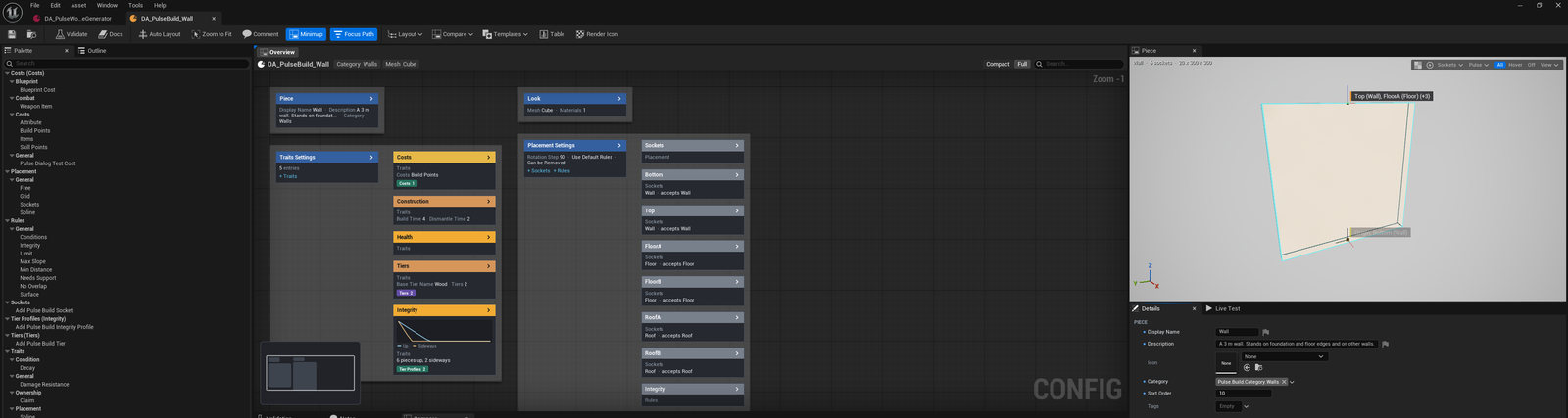
- Left: the palette with every type that can be added, by list and category. Drag a type onto a + pin (or onto a free spot of the graph: it goes into the list of its palette group and stays where you dropped it); double click adds it to that list. In lists that hold each type once, types already in the list are greyed out. Lists of objects also list the Blueprint classes of their base class (loaded or not) and offer Create New Blueprint…: a save dialog creates a Blueprint of the base class next to the asset, adds it and opens it.
- Middle: the graph. A node shows its list and a short summary (the same summaries as the cards); the arrow in its header opens the values inside the node. Drag the link of an entry onto a pin of another list to move it there (or onto another pin of its own list to sort it). Delete removes entries, Ctrl+D duplicates, Ctrl+C / Ctrl+V copy entries as text, also into another asset. The context menu of a node has Show Values, Move Up, Move Down, Duplicate, Change Type and Remove.
- Right: the preview of the plugin (optional) and the details of the selected node: the values of an entry or a section, or the plain values of the asset for the main node. With several nodes selected it edits several objects together, or asks to select one node. The details customization of the asset class (with its own preview, for example) is not used here; the workshop has the preview on the right.
- Below: validation and notes.
The tree
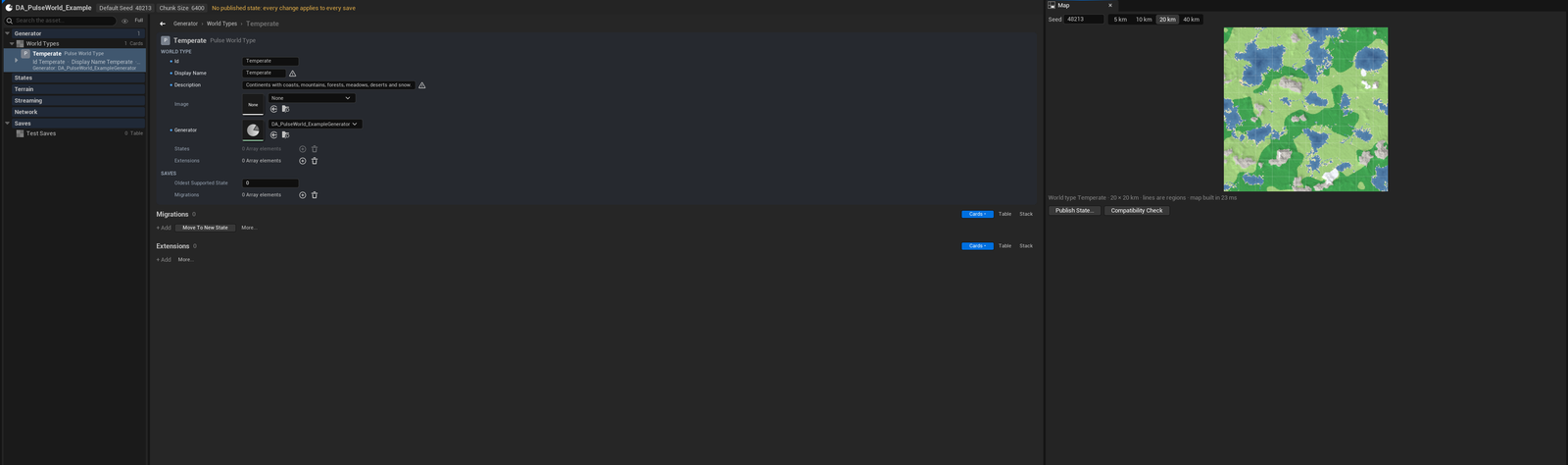
- Left, the tree: a tinted row per section (category), a row per list with its number of entries, its view and its problems, a row per entry with the type tile in the color of its category, the name, the type and the summary, and below it the summary and up to two lines of key values (a node provider gives them with
GetTreeLines, else the changed values the summary leaves out; Compact hides them). References to other assets are italic with an arrow that opens them. Problems are counted at the entry and summed at every row above it, so a closed branch shows them too; their number in the head of the tree opens the Validation tab with all of them. The search keeps the parents of every match; the eye dims every section but the one of the selection. Drag entries to sort them or to move them into another list of the same type (one undo step); the context menu has Add, Show as Cards / Table / Stack, the entries of the plugin (AddListMenuEntries), Duplicate (Ctrl+D), Delete (Delete), Change Type and Show in Graph. Open and closed branches are kept per user, not in the asset. - Middle: the way back (crumbs “Generator > Layers > Mountains”) and the list of the selection in its view; an entry with lists shows its values and then its lists, a section its problems, plain values and lists. The values of the selected entry stand where it is: in its card, or below the table or the stack, with its problems and their fix buttons above them and the values of the entry it sits in folded below. Choosing another entry of the same list only changes these values; the rest stays where it is. Every list has Cards | Table | Stack (a dot marks the view the plugin chose) and an add row with three types that fit and More….
- Cards: a card per entry with tile, name, type, summary, the lists inside it as chips (a click opens them); the selected card shows its values, the arrow opens those of others.
- Table: a row per entry, a column per plain value, edits go to every selected row; a red dot marks rows with a problem. Compare with N assets in Pulse Tables opens the tables of the class. A list of instanced structs with the meta
PulseTableColumnsadds a column per extension type with one value (the surface type of the voxel bridge on the ground layers of Pulse World); typing into an empty cell adds the extension. - Stack: rows in order with a drag handle, an eye for types with a
bEnabledvalue, S (solo: only this entry in the preview,IConfigPreview::OnSoloChanged; the asset does not change), name, summary and a value of the node provider on the right (GetStackValue, time per layer for example).
- Right: the preview (and its Live Test tab). A click into the preview selects the entry it shows (the preview calls the function it got with the path; a plain value of the asset selects its section).
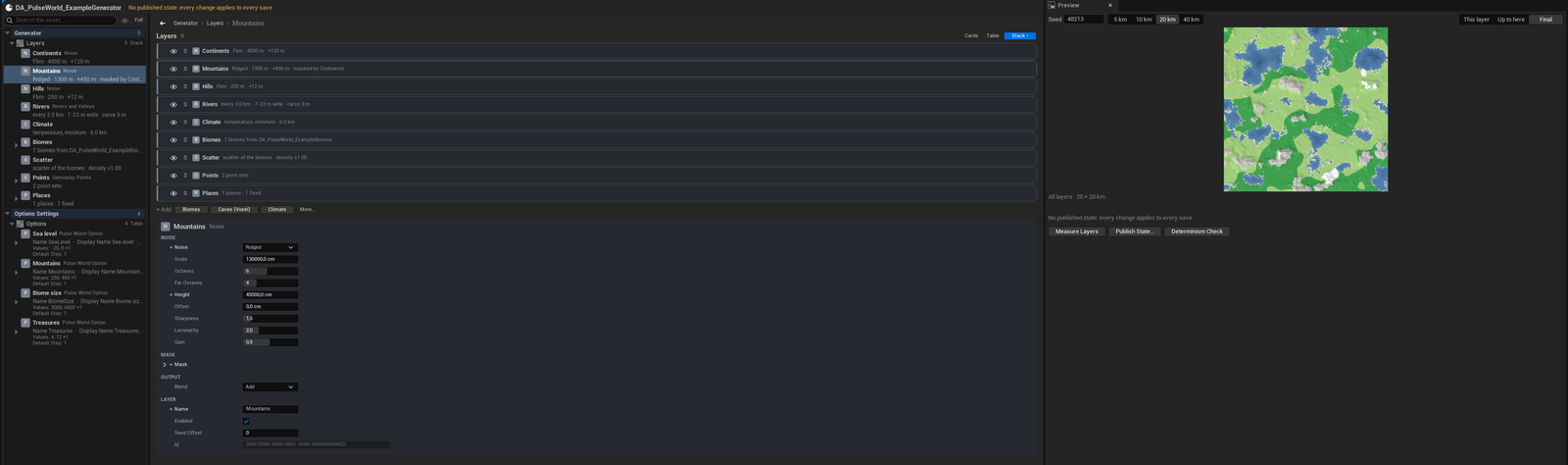
The plugin picks the view of each list in FConfigAssetOptions::ListViews (by the path of the list without indices, “Layers”, “Biomes.GroundLayers”) and DefaultListView; without them lists of one fixed struct are tables, all other lists cards. A user’s choice wins and is kept per class.
options.ListViews.Add(TEXT("Layers"), Pulse::Editor::Kit::Config::EListView::Stack);
options.ListViews.Add(TEXT("Sockets"), Pulse::Editor::Kit::Config::EListView::Table);
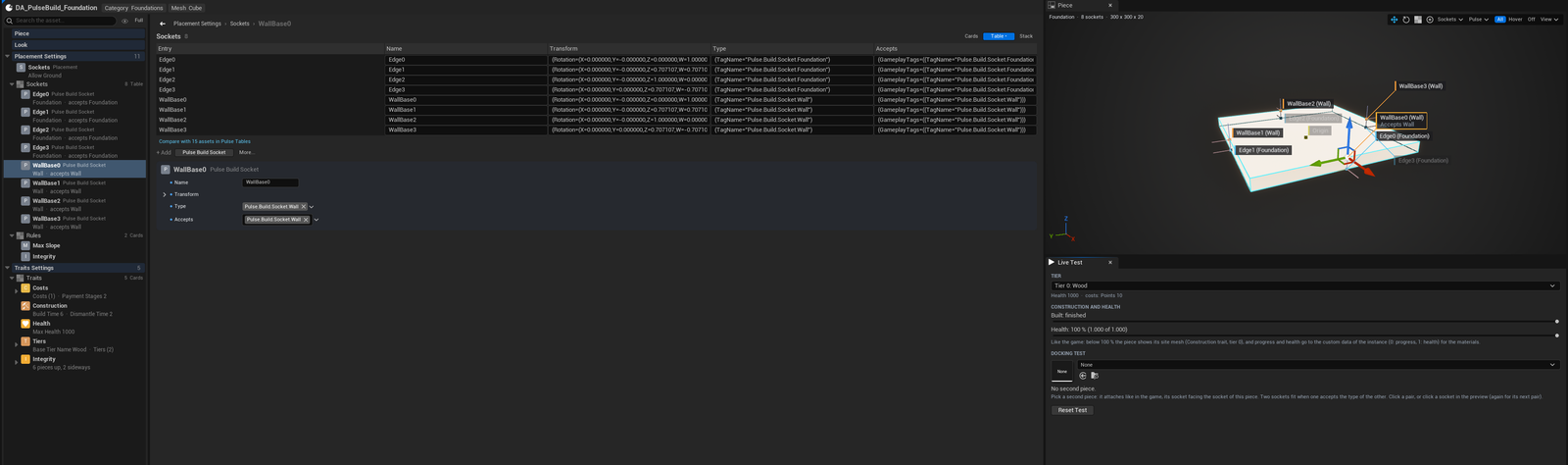
Pulse.Workshop <Asset> Mode Tree|Graph, ListView <List> Cards|Table|Stack, Select <Path>, Solo <Path> and Compact 0|1 drive an open workshop for scripted checks and pictures.
Overview and graphs of lists
The bar above the graph has a tab per open view (the overview, every opened list, every opened group; the cross closes one), then a head row: in the overview the asset with its main values and a note of the asset type (FConfigAssetOptions::MakeHeaderNote), in a list the way back (arrow and crumbs “Asset > Traits > Costs”) and the counts. On the right: Lanes / Table for lists, Compact / Full cards and a search that dims every node that does not match.
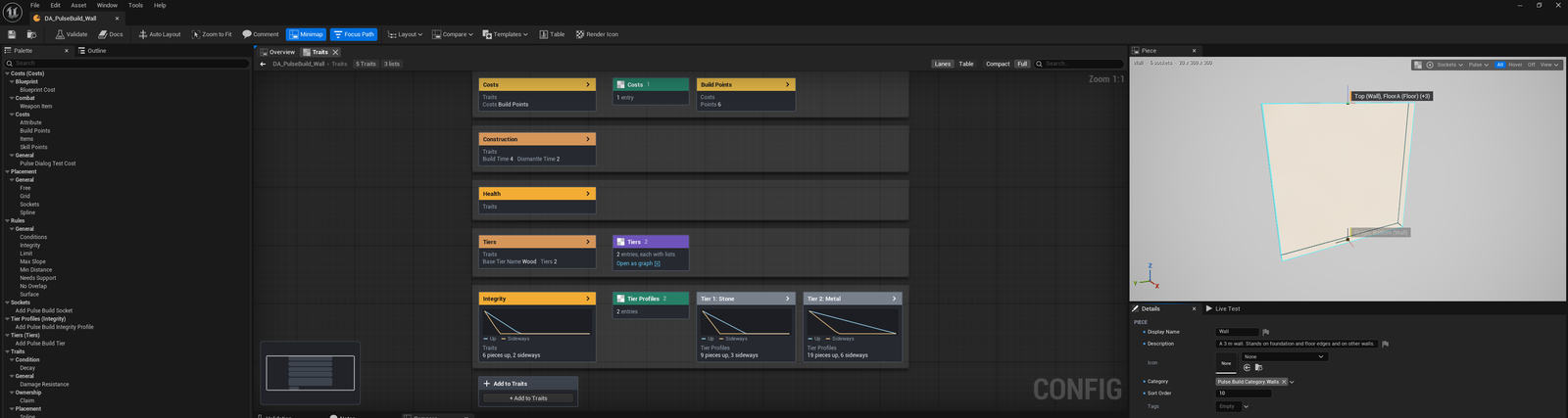
- Overview: a list with more entries than Overview Max Entries (default 12) is one node that opens its graph; shorter lists show their entries. An entry shows the lists inside it as chips (green: open the graph of the list with that entry selected; violet: the list has lists itself, open its own graph). A double click on an entry opens the graph of its list. Empty lists show Start with buttons with the first types of the list and all types…. The boxes stand in Overview Columns columns (2 or 3, Layout menu).
- Graph of a list: one lane per entry: the entry, then every list inside it in a row (its chip, then its entries; a list one level deeper is only a chip that opens its own graph). References to other assets are dashed links. **Add to
- ** at the end adds an entry.
- Table: the entries of the list as rows, a column per plain value. A value typed into a cell goes into every selected row, as one undo step.
- Collapse to Graph (Ctrl+G, context menu): a list, an entry with everything inside it, or several entries of one list one after the other become one group node in the overview or the graph of the list; a double click (or Open as graph) opens the group as a view of its own, Expand Here puts the nodes back, Rename… names it. The group node shows how many nodes it holds and how many of them have problems. Groups are stored with the layout and follow their entries when entries are added, removed or moved; collapsing, expanding and renaming are undo steps and change nothing in the asset.
- The Outline lists sections, lists and groups; a click opens the view that shows the item (a list opens its graph, a group its view). Rows show how many problems the validation found inside them.
- Positions are kept per view: a node moved in the graph of a list keeps its place there only. Every view remembers where it was looked at; a view opened for the first time is fitted into the window.
Pulse.Workshop <Asset> View <View> | Table <0|1> | Collapse <Key>... | Expand <Group id> | Search <Text> | Select <Key>... changes an open workshop from the console (views are O, L:<list path>, G:<group id>), for scripted checks and pictures.
Node headers, pins and value names have tooltips (the description of the type, the list and the property). Nodes inside a selection rectangle are highlighted while it is drawn.
The tree is laid out from left to right and moves along when a node opens or a list changes; nodes you move keep their place. A double click on a link adds a reroute node, a point that leads the link around other nodes; drag it to move it, Delete removes it. Auto Layout lays out the whole tree again (without reroute nodes). Positions, comment boxes and reroute nodes are stored in the package metadata of the asset, so nothing changes at runtime; they move with their entries when entries are added, removed or moved. Every edit is one undo step, also moving nodes, comments and reroute nodes.
Layout options (toolbar button Layout, all of them also in Editor Preferences > Pulse > Foundation > Config Workshop, set per person):
| Option | What it does |
|---|---|
| Compact Nodes | Collapsed entry nodes take one line: the title and the summary in the header |
| Lists Side by Side | Each list of the main node gets a column of its own; the graph grows wide instead of high |
| Wrap Long Lists | Lists with more entries than Entries Per Column (default 5) are put into several columns |
| Collapsible Lists | Lists can be collapsed into one stack node (“Sockets (6)” with the first titles); the arrow of the stack node expands it, the context menu of a node collapses or expands its lists, Collapse All Lists / Expand All Lists in the Layout menu; a new entry expands its list; the state is kept per asset in the layout |
Navigation in big assets (also switchable in the editor preferences):
- the Outline tab next to the palette lists every section, list and entry of the asset as a tree with search, including the lists inside entries; a click selects the node and moves the graph to it, a list shows all its entries; collapsed lists on the way are expanded. The outline follows the selection of the graph;
- the focus button of the toolbar (All Lists / Only Traits) shows a single list of the main node and hides the sections and the other lists (for this editor session);
- a double click on a pin of the main node (or of an entry) selects all entries of that list and fits them into the view.
Register the classes that open in the workshop in the editor module; double click on an asset of the class (or of a child class) then opens the workshop:
// StartupModule
Pulse::Editor::Kit::Config::FConfigAssetOptions options;
options.Lists = { TEXT("Sockets"), TEXT("Rules"), TEXT("Traits") };   // empty: every list
options.SummaryProperties = { TEXT("Category"), TEXT("Mesh") };        // named on the main node
options.Color = FLinearColor::FromSRGBColor(FColor(232, 156, 62));
options.DocsPlugin = TEXT("MyPlugin");
options.DocsPage = TEXT("editor");
options.MakePreview = [](UObject* InAsset, TFunction<void(const Pulse::Editor::Kit::Config::FValuePath&)> InSelectPath)
{
	return MakeShared<FMyPreview>(InAsset, MoveTemp(InSelectPath));   // IConfigPreview, optional
};
Pulse::Editor::Kit::Config::RegisterConfigAsset(TEXT("/Script/MyPlugin.MyDefinition"), options);

// ShutdownModule
Pulse::Editor::Kit::Config::UnregisterConfigAsset(TEXT("/Script/MyPlugin.MyDefinition"));
Lists of instanced structs, lists of instanced objects (EditInlineNew classes), single instanced values (one pin with at most one node) and lists of a fixed struct type (sockets, tiers: + adds an entry with default values) all work. Sections and HiddenCategories choose the section nodes, SectionNames renames them, HiddenProperties leaves properties out. Config::RegisterEntryTitle(Struct, Provider) names entry nodes; the provider gets the asset, the path, the type and the memory of the entry, so it can name an entry by its place (“Tier 1: Stone” for the first integrity profile of a piece). Without a provider a Name or DisplayName value or the type name is used.
Pulse::Editor::Kit::Config::RegisterEntryTitle(FMyTierData::StaticStruct(), [](const Pulse::Editor::Kit::Config::FEntryTitleContext& InContext)
{
	return FText::Format(INVTEXT("Tier {0}"), FText::AsNumber(InContext.Path.GetIndex() + 1));
});
A preview (Config::IConfigPreview) gets the selection of the graph or the tree (OnGraphSelectionChanged with the paths of the selected entries) and can select an entry itself with the function it got (for example when a socket is clicked in the 3D view); OnSoloChanged tells it the solo entry of a stack. MakeTestPanel adds a Live Test tab next to the details (GetTestPanelLabel names it), so the preview stays visible while a test runs: sliders, a second asset to try the asset with, and so on. AddListMenuEntries adds entries to the context menu of a list (its pin, the main node), for tools that work on the whole list (PulseBuild: “Generate Sockets…” on the sockets). Graph editors in general get such a tab with FPulseGraphAssetEditorToolkit::MakeDetailsExtra. Entries are addressed by paths (FValuePath, “Traits[2].Costs[0]”), see Kit/Config/PulseConfigPath.h.
References to other assets
References to other assets (object and soft object properties, single or in lists) are reference nodes: the thumbnail and the name of the asset, its list and the summary values of its own workshop, linked with a dashed line (the asset is not part of this one). By default every reference to an asset whose class has a workshop gets reference nodes, also inside entries; FConfigAssetOptions::References names more (any property of that name), and a property named in Lists is always shown. Other references stay values of their node.
- Drag assets from the content browser onto a reference pin (+ of a list, or a single reference), onto a node with reference lists or into the graph: they go into the first list (or single reference) that takes their class. Dropped on a reference node, the asset replaces it. The hover text says where they go.
- The palette and the menu of a reference pin list the assets of the class that are not in the list yet.
- Double click opens the asset (in its workshop if it has one); the context menu also finds it in the content browser.
- Delete removes a reference from its list, or clears a single reference; the asset itself stays.
- Selected, the Details tab shows a picker for the asset.
Config::GetReference, GetReferencePath and SetReference read and set references by path.
Validation, quick fixes and relations
The Validation tab of the workshop lists the problems of IsDataValid and the checks of the workshop, each on the node it belongs to (a click selects the node, expanding collapsed lists on the way; plain values select their section), with quick fixes as buttons:
| Check | Fix |
|---|---|
| An entry without a type, a reference to nothing in a list | Remove |
| A type twice in a list that holds each type once | Remove (the second one) |
A value outside its ClampMin / ClampMax (entries and plain values of the asset) | Set to the nearest allowed value |
An entry needs a type the asset does not have (RegisterRequires) | Add it to the first list that takes it |
Entries of two types do not work together (RegisterConflicts) | Remove the other one |
When IsDataValid reported a problem with the same path (Pulse::Validation::AddIssue), the fix goes to that problem instead of a second one, so plugins keep their own texts. Relations are registered per type in the editor module; RegisterSuggests puts the type under Fits With at the top of the palette and offers Add in the menu of the node while it is missing:
using namespace Pulse::Editor::Kit::Config;
RegisterRequires(FMyTrait_Decay::StaticStruct(), FMyTrait_Health::StaticStruct(), INVTEXT("Decay takes health away."));
RegisterSuggests(FMyTrait_Construction::StaticStruct(), FMyTrait_Costs::StaticStruct());
RegisterConflicts(FMyTrait_Static::StaticStruct(), FMyTrait_Physics::StaticStruct());
// ShutdownModule: UnregisterRelations(FMyTrait_Decay::StaticStruct()); ...
Checks of the plugin go into FConfigAssetOptions::Validate. The context adds problems on nodes and makes fixes that edit through the workshop (undo, layout): MakeAddFix, MakeRemoveFix, MakeSetFix; AddFix hangs a fix on a problem IsDataValid reported at a path:
options.Validate = [](Pulse::Editor::Kit::Config::FConfigValidationContext& InContext)
{
	const UMyDefinition* asset = Cast<UMyDefinition>(InContext.GetAsset());
	const Pulse::Editor::Kit::Config::FValuePath path(TEXT("Traits"), 0);
	InContext.AddFix(path, InContext.MakeSetFix(path, TEXT("Stages"), TEXT("1"), INVTEXT("Pay at Once")));
};
Templates
Assets of a class often share parts: every wall has the same costs, construction and health, every potion the same use. A config template (UPulseConfigTemplate, Kit/Config/PulseConfigTemplate.h) holds such parts: entries of lists (also single instanced values such as a placement mode) as text in the copy and paste format of the workshop, and plain values. Templates are editor only and never cooked.
The Templates menu of the workshop:
- Save as Template puts every entry of the lists into a new template
TPL_<Name>next to the asset (or into the template folder of Editor Preferences > Pulse > Foundation > Config Workshop). Rename or move it like any asset; its Description shows where templates are picked. - Save Selection as Template takes the selected entries and the values of the selected section nodes (select the section of the category, for example).
- Below are the templates of the class and its parents. Applying one is a single undo step: lists that hold each type once get the values in their entry of that type, single values are replaced, values the asset has already are skipped, everything else is added at the end. A notification tells what happened (“3 added, 1 replaced, 2 already there”).
The same functions are there for code (the creation wizard uses them):
using namespace Pulse::Editor::Kit::Config;
UPulseConfigTemplate* preset = CreateTemplateAsset(MyAsset);              // TPL_<Name>, package dirty
FillTemplate(*preset, MyAsset, GetTemplateEntries(MyAsset), { TEXT("Category") });
for (const FAssetData& found : FindTemplates(UMyDefinition::StaticClass()))   // by SortOrder, then name
{
	const FTemplateResult result = ApplyTemplate(OtherAsset, *CastChecked<UPulseConfigTemplate>(found.GetAsset()));
}
ApplyTemplate edits through FEditScopes without a transaction of its own; open one around it for a single undo step (UPulseConfigGraph::ApplyConfigTemplate does that in the workshop and keeps the layout).
A plain value that is a struct (a whole profile, for example) is stored against the defaults of the struct and set as a whole: members the text leaves out get their defaults, so zero and false values carry over, and a text that does not import leaves the value as it is.
Creating assets
A class that is a Create entry of the plugin’s workflow needs no factory: **Add > Pulse >
- :
- ` for other lists and `S: