Debugging
PulseFoundation gives every Pulse plugin (and your game) the same debugging tools. A plugin describes its state and processes once; the tools show it everywhere.
| Tool | Question it answers | Where you see it |
|---|---|---|
| Snapshots | What is the state right now? | Pulse Debugger (Live, Overview), gameplay debugger, visual logger, PulseDebugDump |
| Timeline | What happened in which order, and how long did it take? | Pulse Debugger (Timeline, Overview) |
| Reports | How did a multi-step process go, step by step? | Pulse Debugger (Reports), JSON files |
| Cheats | Can I force a state to test it? | Console |
All of it works from C++ and from Blueprints (see From Blueprints).
All of it is compiled out of shipping builds (PULSE_WITH_DEBUG is 0). When a feature is turned off, it costs one cached bool check.
Pulse Debugger window
Tools > Debug > Pulse Debugger (or the console command Pulse.Debugger [Overview|Reports|Live|Timeline|<page id>]) shows everything the plugins record. The sidebar has a button per page; a number on a button counts new warnings and errors on that page.
The window is a developer tool (module PulseFoundationDebugger): it opens in the editor, in a game started from the editor (Launch Game, -game) and in Debug and Development builds of a game, always with Pulse.Debugger in the console (press Shift+F1 to free the mouse in a game). Test and Shipping builds do not have it. Without the editor the buttons that need it (Select, Open, viewport views) are left out.
World bar
The bar at the top is shared by all pages:
- World: the world the pages show (PIE server, each client, standalone, ended worlds that still have events, imported files). A dot shows whether the world still runs.
- + worlds: merges more worlds into the views that can show several at once (Timeline, Overview). All Running Worlds merges the server and every client.
- Follow PIE: a new PIE session selects its server world on its own (remembered per user).
- Pause: the pages keep what they show and stop refreshing; recording goes on.
- Mark: writes the text of the box as a marker into every running world (same as
Pulse.Debug.Mark <text>). - Import: loads a file written with Export on the Timeline or Live page. It shows up as a read-only world named
Imported: <file> / <world>.
Overview
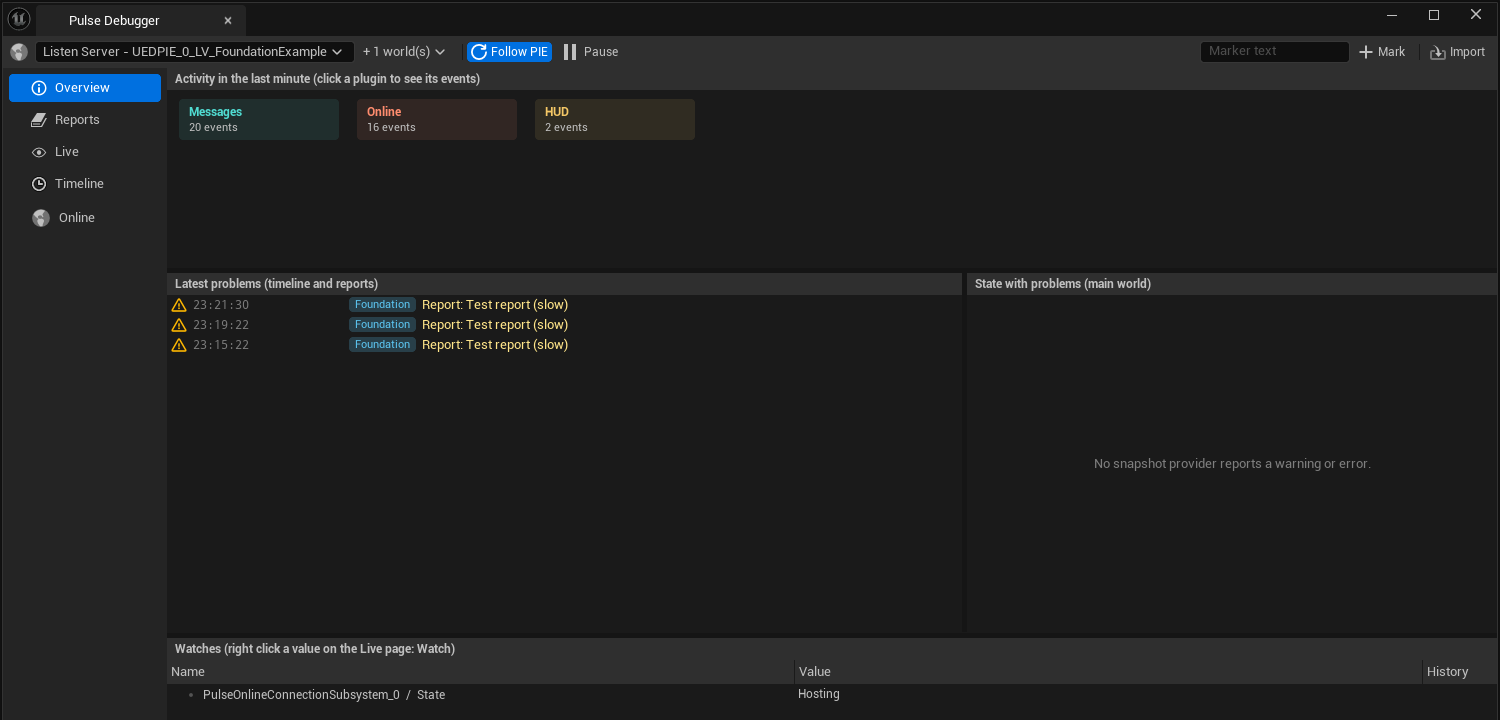
The first page answers “is anything wrong right now?”:
- Activity in the last minute: one card per plugin with its events, warnings and errors. Click a card to see the plugin’s events on the Timeline page.
- Latest problems: warnings and errors from the timeline and failed reports of the selected worlds. Double click to jump to the event or report.
- State with problems: snapshot providers of the main world whose snapshot has warning or error rows. Double click to open the provider on the Live page.
- Watches: the values you pinned on the Live page.
Timeline
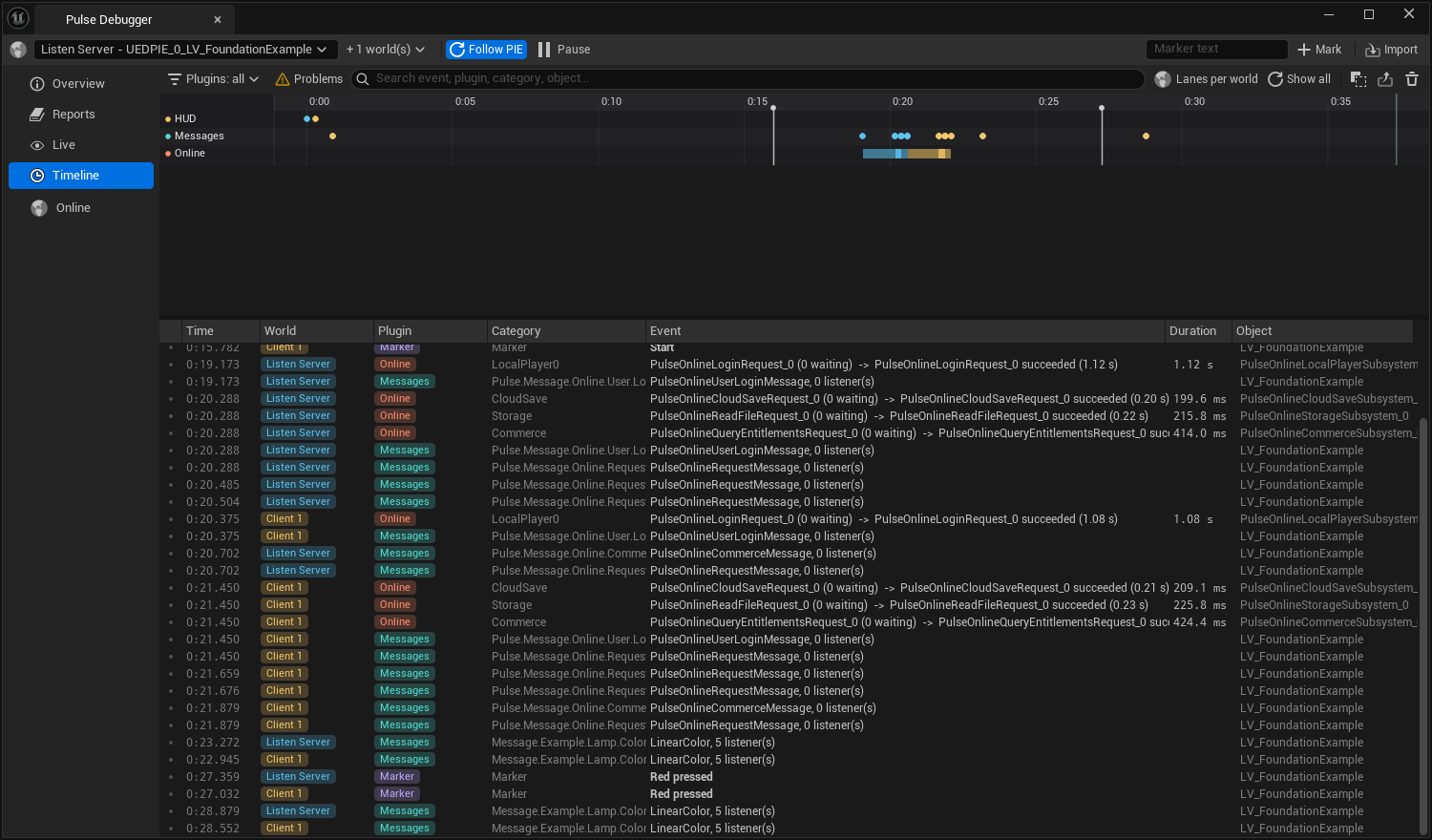
- Time track above the list: one lane per plugin (or per world with Lanes per world). Events are dots in the plugin’s color, warnings and errors get a colored ring, spans are bars from begin to end, markers are vertical lines.
- Mouse wheel zooms around the cursor, dragging pans, Shift + drag selects a time range that filters the list (a click on an empty spot or Show all clears it), double click or Show all fits all events.
- While the newest events are in view, the track follows them (up to the last five minutes).
- Hover shows the event, a click selects it in the list.
- List: time, world (when several worlds are merged), plugin, category, text, duration and object. A span is one row (
begin -> endwith its duration,(running)while it has not ended). The bar below the list shows the full text, the time since the previous event and the object actions. - Filters work on the list and the track: Plugins (per plugin and category, with counts; Only X hides all others; remembered per user), Problems, search (text, plugin, category, object). Right click a row for Only this plugin, Hide this plugin, the same for the category, object actions and copy.
- Merged worlds: the events of all selected worlds on one time axis (real time), so you see what the client did while the server handled it.
- Marker ranges: the Markers button lists the markers of the timeline. Pick one and choose Until the end, Until the next marker or Until any later marker: the list and the track show only the events in between (the range is shaded on the track and named on the button). Right click a marker row for the same choices; Show all events or Show all clears the range.
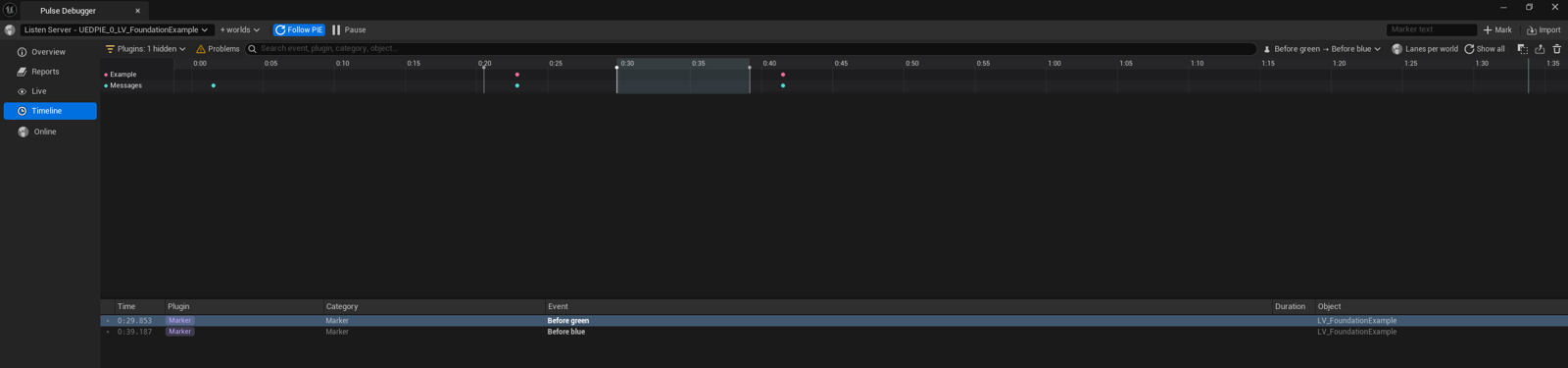
- Toolbar: copy as text, Export (JSON with the events of the selected worlds), clear.
What came up while playing
In the editor Pulse Foundation remembers the names of what came up while playing in this editor session: the categories of snapshot providers that registered, the sources of timeline events and the channels of messages that were sent (a channel also counts for its parents). Only names, no contents. The checks of the learning paths use it (Pulse.SnapshotProviderSeen, Pulse.TimelineEventSeen, Pulse.MessageSeen), so a lesson can tell that the user’s own provider showed up. The snapshot registry, the timeline and the message bus fill it; Pulse::Debug::MarkSeen / WasSeen (Debug/PulseDebugSeen.h) are the functions. Timeline sources are only seen while the timeline records (bEnableTimelineInEditor, on by default). Nothing is recorded outside the editor, and it is compiled out of shipping builds.
Reports
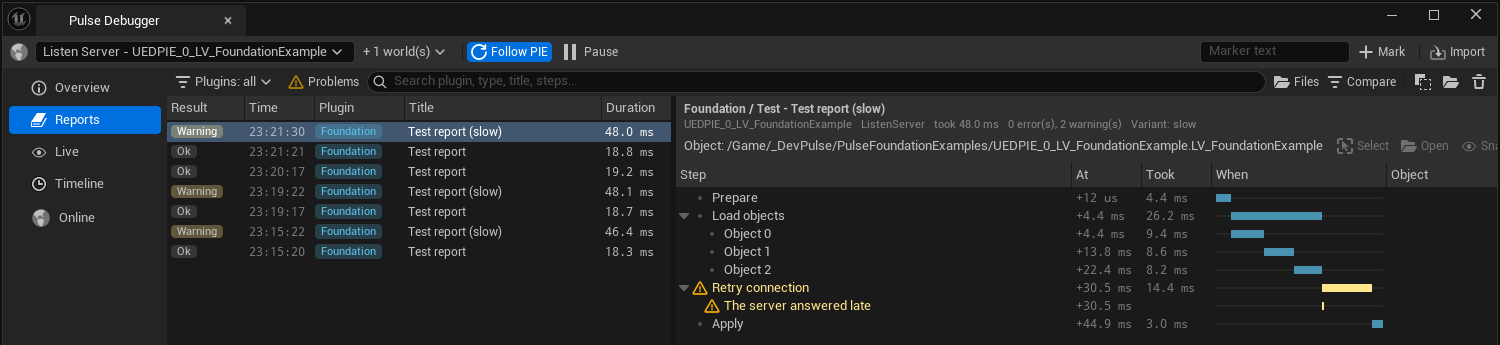
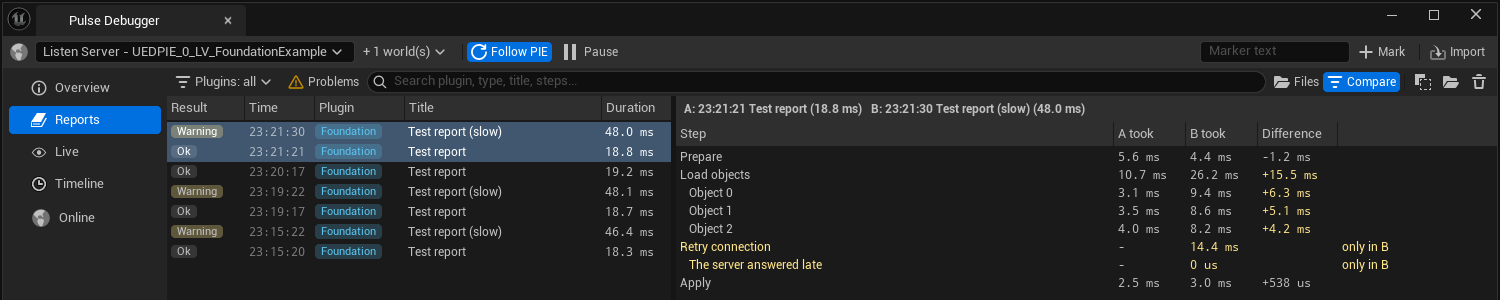
- List: result, local time, plugin and duration of every report of the session (or of the report files with Files), with the plugin filter, Problems and search.
- Entries: the tree of the selected report with severity icons, start (At) and duration (Took), and a waterfall column: each step is a bar inside the report’s duration, so slow steps stand out. The header shows the context object with its actions.
- Compare: select two reports (Ctrl + click) and turn on Compare. Steps are matched by their path in the tree; the view shows both durations, the difference (noticeably slower steps in warning color) and steps that only one report has.
Live
- Problems on top: every warning and error row of all providers, red or yellow, with Show to select its provider.
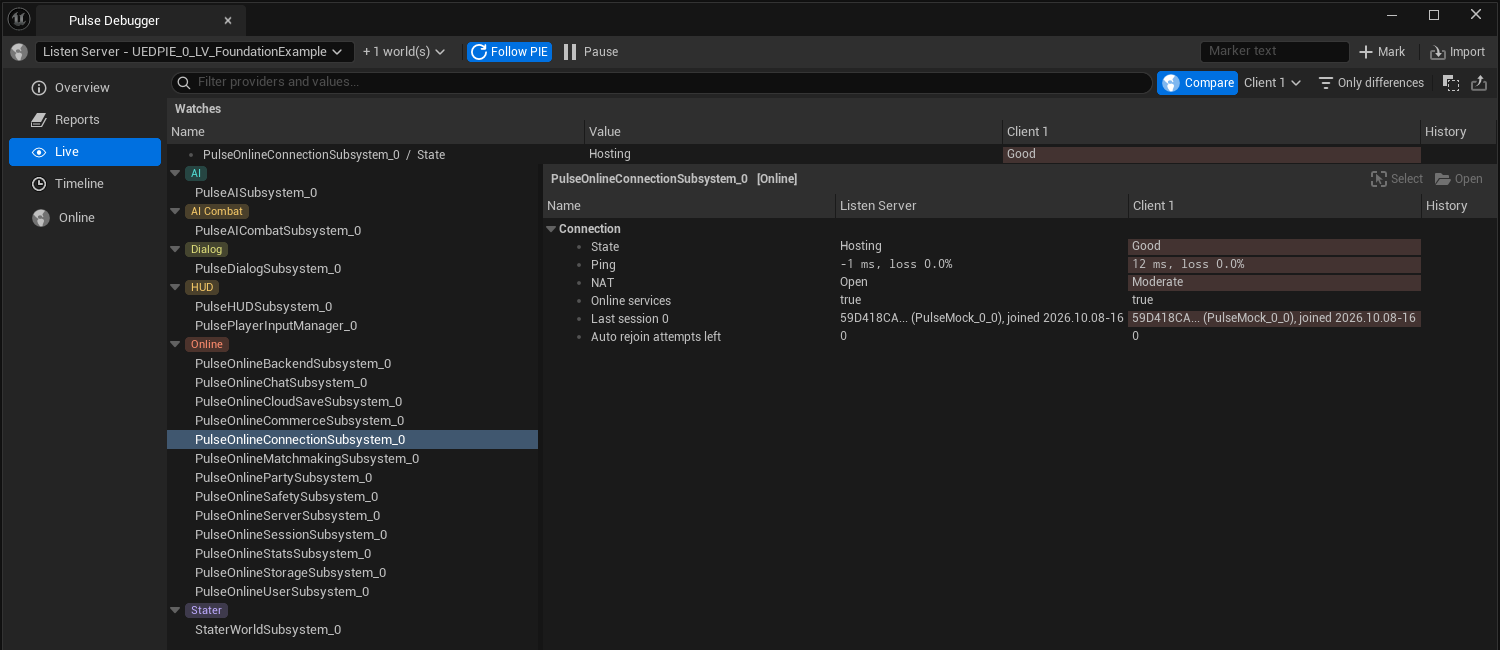
- Providers grouped by plugin (category). A badge counts the warning and error rows of their last snapshot; the filter searches provider names and values.
- Snapshot: the summary of the provider (light, big value, one line) above name and value columns. Values are drawn by their kind: lights for states, avatars for people, bars for shares, links that open assets, badges as chips. Enum prefixes are removed (
EState::HostingbecomesHosting), long GUIDs shortened (the tooltip has the full value). A changed value lights up for two seconds. Numbers that change get a small graph of their last 60 values. - Compare: shows the same provider of a second world next to it (found by category, class, owner class and owner name); different values are highlighted, Only differences hides equal rows.
- Watches: right click a row and choose Watch. Watched values stay on top of the Live page and on the Overview, for all selected worlds, and are remembered per user.
- Right click also copies the value, name and value, or everything.
- Export writes the snapshots of all providers of the world into a file (read back with Import).
Object actions
Wherever an event, report entry or provider names an object (Timeline details and context menu, report header, Live page), the same actions are available: Select (actor in the PIE world, the camera moves to it), Open (asset editor) and Snapshot (the provider itself or a provider component of the actor, on the Live page).
Snapshots
Implement IPulseDebugSnapshotProvider on a component or subsystem and register it:
void UMyComponent::BeginPlay()
{
	Super::BeginPlay();
	Pulse::Debug::RegisterSnapshotProvider(this);
}

void UMyComponent::EndPlay(const EEndPlayReason::Type Reason)
{
	Pulse::Debug::UnregisterSnapshotProvider(this);
	Super::EndPlay(Reason);
}

void UMyComponent::GatherDebugSnapshot(FPulseDebugSnapshot& OutSnapshot) const
{
	FPulseDebugSnapshotSection& state = OutSnapshot.AddSection(TEXT("State"));
	state.Add(TEXT("Active quests"), ActiveQuests.Num());
	for (const FQuest& quest : ActiveQuests)
		state.Add(quest.Tag.ToString(), quest.StateName, 1);

	if (bBlocked)
		state.AddWarning(TEXT("Blocked"), BlockReason);

	OutSnapshot.AddSphere(GetOwner()->GetActorLocation(), 100.f, FColor::Green, TEXT("Range"));
}

FName UMyComponent::GetDebugCategory() const { return TEXT("Quest"); }
const AActor* UMyComponent::GetDebugOwner() const { return GetOwner(); }
The same snapshot feeds:
- the Live page of the Pulse Debugger;
- the gameplay debugger (apostrophe key): category Pulse shows the providers of the selected actor and of your own player; plugins can add a category for their providers only (
IPulseFoundationDebug::RegisterSnapshotCategory, withbInLocalProvidersfor client-only state such as HUD); - the visual logger: call
Pulse::Debug::AddSnapshotToVisualLog(Snapshot, Entry)fromIVisualLoggerDebugSnapshotInterface::GrabDebugSnapshotto scrub through the state over time; - the console:
PulseDebugProviders,PulseDebugDump [Category].
GatherDebugSnapshot is only called while a tool looks at it; it must not change state.
Values with a kind and a summary
Text is hard to scan. Rows can say what their value is, and the Pulse Debugger draws it instead of printing it; text output (logs, gameplay debugger, MCP) keeps the plain value:
| Section function | Kind | Drawn as |
|---|---|---|
Add, AddWarning, AddError | Text | Text in the severity color |
AddStatus(Label, Value, State) | Status | A light (EPulseDebugState: Ok green, Busy blue, Warning yellow, Error red, Off grey) and the value; Warning and Error also set the severity |
AddPerson(Label, Name, Id, State, Badges) | Person | An avatar with initials, the name and the roles as chips; pages that gather people merge rows with the same id |
AddRatio(Label, Ratio, Value) | Ratio | A bar from 0 to 1 and the value (default: the percentage) |
AddAsset(Label, Asset) | Asset | The asset name as a link that opens the asset |
WithBadges(Badges) | (any) | Chips after the value of the last row |
SetSummary(Name, Headline, Detail, State, bActive) gives the provider one line for tiles: a light, a big value and a line below. Pages with tiles (the Online page) build one tile per provider from it; bActive = false marks an area nothing happens in, which pages show as a small grey chip only. The Live page shows the summary above the rows.
void UMyPartySubsystem::GatherDebugSnapshot(FPulseDebugSnapshot& OutSnapshot) const
{
	OutSnapshot.SetSummary(TEXT("Party"), FString::Printf(TEXT("%d/%d"), Members.Num(), MaxMembers), TEXT("you lead"), EPulseDebugState::Ok);

	FPulseDebugSnapshotSection& members = OutSnapshot.AddSection(TEXT("Members"));
	for (const FMember& member : Members)
		members.AddPerson(TEXT("Member"), member.Name, member.Id, member.bConnected ? EPulseDebugState::Ok : EPulseDebugState::Warning, { TEXT("leader") });
	members.AddStatus(TEXT("Beacon"), TEXT("connected"), EPulseDebugState::Ok);
}
Timeline
PULSE_DEBUG_EVENT(this, Quest, Objective, Info, TEXT("Objective '%s' finished"), *Objective->GetName());
PULSE_DEBUG_EVENT(this, HUD, Modal, Warning, TEXT("Modal '%s' replaced an open modal"), *Request.Title.ToString());
Arguments: context object (its world groups the events), source (plugin), category, severity (Info, Warning, Error), format and arguments. The text is only formatted while the timeline records. Each world keeps the last TimelineCapacity events. The message bus writes its messages into the timeline as source Messages.
Spans
Things that take time (requests, loading, a dialog line) are spans: a begin and an end event with the same SpanId. The Pulse Debugger shows them as one row with the duration and as a bar on the time track.
const int64 span = Pulse::Debug::BeginSpan(this, TEXT("Online"), TEXT("Session"), TEXT("Create session"));
// ... later, when it finished
Pulse::Debug::EndSpan(span, bSuccess ? TEXT("Session created") : TEXT("Session failed"),
	bSuccess ? EPulseDebugSeverity::Info : EPulseDebugSeverity::Error);
BeginSpan returns 0 while the timeline does not record and EndSpan ignores 0, so no extra checks are needed. Guard expensive text with Pulse::Debug::IsTimelineRecording(). A span that never ends stays (running); at most 10 000 spans can be open at the same time.
Markers
Pulse.Debug.Mark <text> (console, also in standalone games) or the Mark button of the Pulse Debugger writes a marker into the timeline of every running world (source Marker). Use it to mark the steps of a manual test (“door opened”, “client joined”); markers are vertical lines on the time track. In code: Pulse::Debug::RecordMarker. The Markers button of the Timeline page shows only the events after a marker, up to the end or another marker.
Worlds
Worlds are told apart by Pulse::Debug::GetWorldDebugName (the package name, UEDPIE_0_LV_Map for the PIE server and UEDPIE_1_LV_Map for the first client), so server and clients of one map have their own timeline. The Pulse Debugger labels them with the net mode (GetWorldDebugLabel: Listen Server - UEDPIE_0_LV_Map). PIE reuses these names in every session, so a world’s timeline is cleared when a game world with the same name initializes; until then the events of the last session stay readable after PIE stopped.
Reports
Reports record processes with several steps (loading a save, a dialog session, a crafting request):
FPulseReportRecorder& GetReportRecorder()
{
	static FPulseReportRecorder recorder(TEXT("Quest"), [] { return Pulse::Quest::GetSettings()->ReportPolicy; });
	return recorder;
}

if (GetReportRecorder().IsRecording())
{
	FPulseReportBuilder builder(TEXT("Quest"), TEXT("Load"), TEXT("Load quests"), this);
	builder.BeginSection(TEXT("Quest.Main.Intro"));
	builder.AddEntry(EPulseDebugSeverity::Warning, TEXT("Objective 'FindKey' no longer exists"));
	builder.EndSection(EPulseDebugSeverity::Warning);
	builder.AddImportReport(ImportReport);
	builder.SetMeta(TEXT("Slot"), SlotName);
	GetReportRecorder().Submit(builder.Finish(EPulseReportResult::Success));
}
- Entries form a tree (
BeginSection/EndSection, durations are measured); entries can carry a payload struct (SetPayload, stored as JSON). Finish(Success)becomesWarning/Failureif there are warning / error entries.- Many small operations:
AddBatchedEntrycollects them into one report per type, submitted after one idle second. - Each plugin has an
FPulseReportPolicyin its settings: mode in editor and packaged builds (Disabled,OnFailure,Always) and how many files to keep. The lastRecentReportsInMemoryreports of the session are always shown in the Pulse Debugger while recording; files go toSaved/Pulse/Reports/<Plugin>/. Pulse::Debug::PublishReportshows a report in the Pulse Debugger without writing a file (Blueprint reports use it). PulseSave records its save and load reports withFPulseReportRecorderlike any other plugin.- The cheat
PulseDebugReportTest [slow]publishes a test report with a few timed steps, to try the Reports page (waterfall, compare) without a plugin that records.PulseDebugTimelineTest [Count]records test events and spans into the timeline of the world (2000 by default).
From Blueprints
Category Pulse > Debug. The nodes that write something are development only (like Print String): they do nothing in shipping builds, and they cost nothing while the timeline or reporting is turned off.
Timeline
| Node | What it does |
|---|---|
| Record Pulse Debug Event | An event (source, category, text, severity) in the timeline of the context’s world |
| Begin Pulse Debug Span / End Pulse Debug Span | A span; keep the returned handle and end it when the work is done |
| Add Pulse Debug Marker | A marker in every running world (same as Pulse.Debug.Mark) |
| Is Pulse Debug Timeline Recording | Whether events are recorded; check it before building expensive text |
| Get Pulse Debug Events | The events of a world after a sequence number, for your own in-game debug UI |
| Clear Pulse Debug Timeline | Clears the timeline of a world |
The color switch of the example records who pressed it (source Example, category Switch):
Live state: Pulse Debug Snapshot component
Add the component Pulse Debug Snapshot to an actor and bind its event On Gather Snapshot (or override Gather Snapshot in a subclass of the component). The event gets a builder; add what describes the actor right now:
- Add Section, Add Row (label, value, depth, severity), Add Bool Row, Add Number Row, Add Warning, Add Error, Add Status Row (with a light), Add Ratio Row (a bar), Set Summary (the line of a tile);
- shapes for the gameplay debugger and visual logger: Add Point, Add Line, Add Arrow, Add Sphere, Add Box.
Category (default Blueprint) groups the providers on the Live page and is the filter of `PulseDebugDump