Plugins talk through messages
Pulse plugins do not call each other. They tell the world what happened on a channel (a gameplay tag), and anyone can listen. In this lesson a Blueprint listens on a channel of your own and prints a text when a message arrives.
Add the channel
Open Project Settings > Project > Gameplay Tags, click Manage Gameplay Tags… and add the tag Game.Message.Hello. Your own channels use your own root tag; Pulse plugins use Pulse.Message.<Plugin>.<Event>. Why: Channels.
Create a Blueprint
In the Content Browser choose Add > Blueprint Class > Actor and name it BP_HelloListener. Open it.
Listen on the channel
In the Event Graph, drag from Event BeginPlay and add Listen For Pulse Message. Set Channel to Game.Message.Hello and Match to Exact.
The node stays active until you call Cancel or the Blueprint is destroyed. Why: Listening.
React to the message
Drag from On Message Received and add Print String. Type The bus says hello into In String, then click Compile and Save.
The node also gives you the payload and the context of the message. You do not need them here.
Place it in the level
Drag BP_HelloListener from the Content Browser into your level. A listener only exists while its Blueprint is in the world.
Send a message
Press Play. Open the console with the Tilde key or Enter and type:
PulseMessageSend Game.Message.Hello
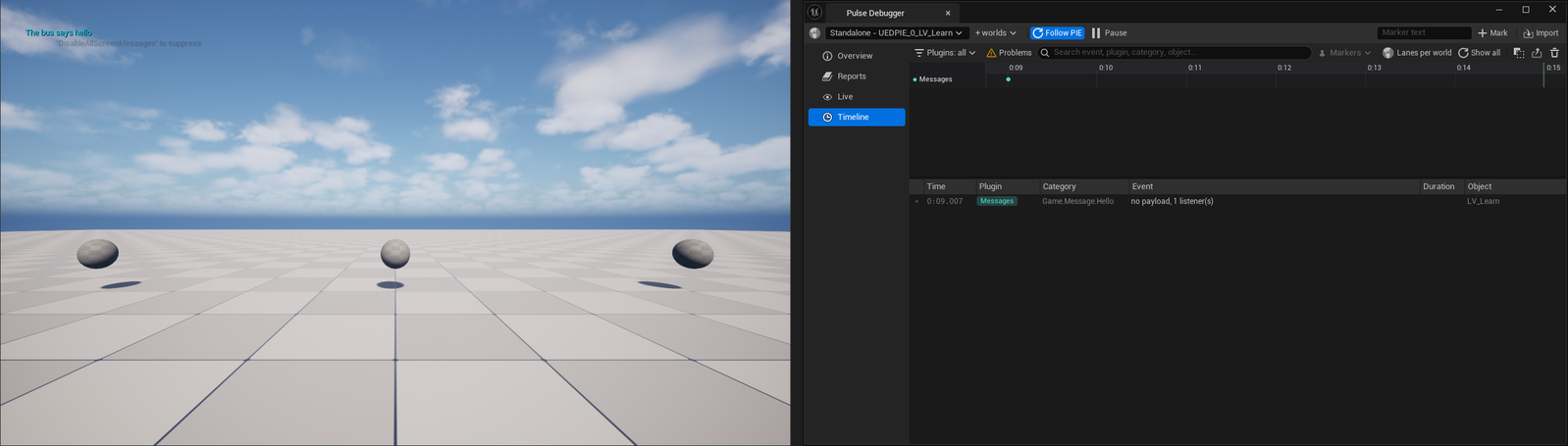
The text appears on the screen. The command sends a message without payload; a payload is any struct, a context says who and what the message is about. Why: Context.
See it in the Pulse Debugger
Open Tools > Debug > Pulse Debugger and choose the Timeline page. The message is an event of the source Messages. Every message of every plugin is recorded there, so you see what happened in which order.
Result
A Blueprint reacts to a message it did not know the sender of.
To send from Blueprint, use Broadcast Pulse Message with the same channel. To count messages as a condition, see Message triggers. Next: Your game in the Pulse Debugger.