Your game in the Pulse Debugger
The Pulse Debugger shows the state and the history of every Pulse plugin. Your own code can use the same two tools: a snapshot says what the state is right now, a timeline event says what just happened. In this lesson a score component does both.
The code is copied from files in the docs, so you can compare it. Replace MyGame with the name of your game module.
Depend on PulseFoundation
Add PulseFoundation to PublicDependencyModuleNames in the Build.cs of your game module.
Create the class
Choose Tools > New C++ Class…, pick Actor Component as the parent and name the class MyScoreComponent. Do not build yet.
Implement the snapshot interface
Replace the header with this one. IPulseDebugSnapshotProvider has three functions: what the state is (GatherDebugSnapshot), the category it is listed under (GetDebugCategory) and the actor it belongs to (GetDebugOwner). Why: Snapshots.
Register it and fill the snapshot
Replace the source file with this one. The component registers itself in BeginPlay, unregisters in EndPlay, fills the snapshot in GatherDebugSnapshot and records a timeline event with PULSE_DEBUG_EVENT whenever the score changes. GatherDebugSnapshot is only called while a tool looks at it and must not change anything.
Build and add the component
Build with Live Coding (Ctrl+Alt+F11), or close the editor and build the editor target in your IDE; a new class needs a full build. Then open a Blueprint actor of your level, for example your character, click Add and choose My Score Component. Compile and save.
Play and open the Live page
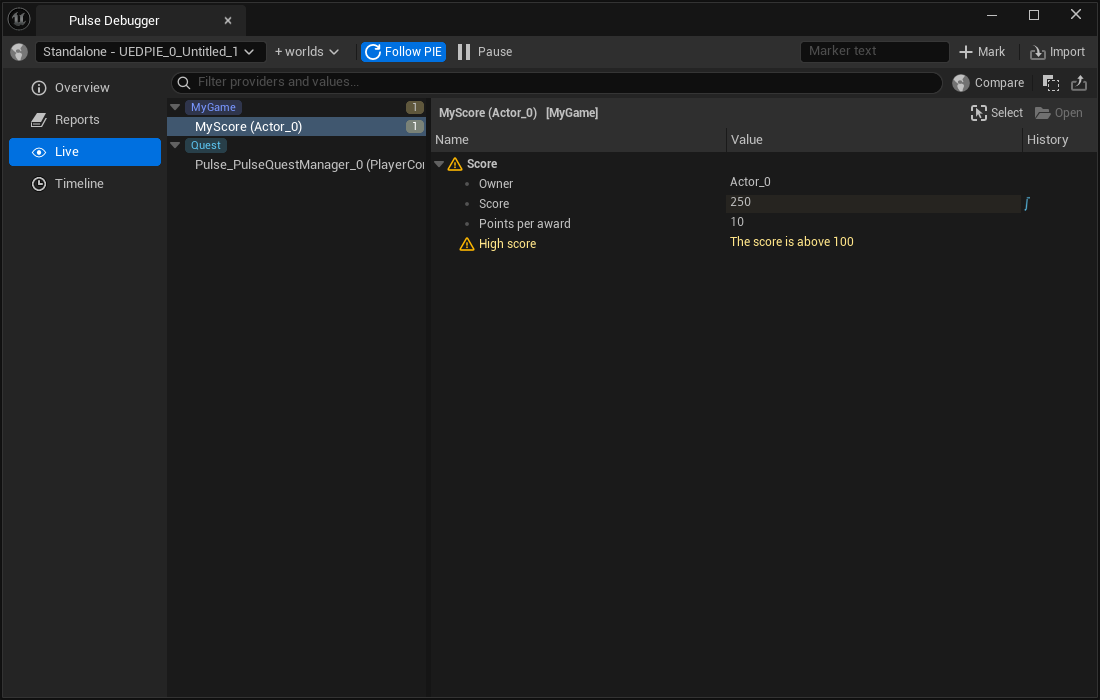
Press Play, then open Tools > Debug > Pulse Debugger and choose Live. Your component is listed under the category MyGame, with the section Score. The score grows every two seconds, and after 100 points the warning row appears.
Read the Timeline page
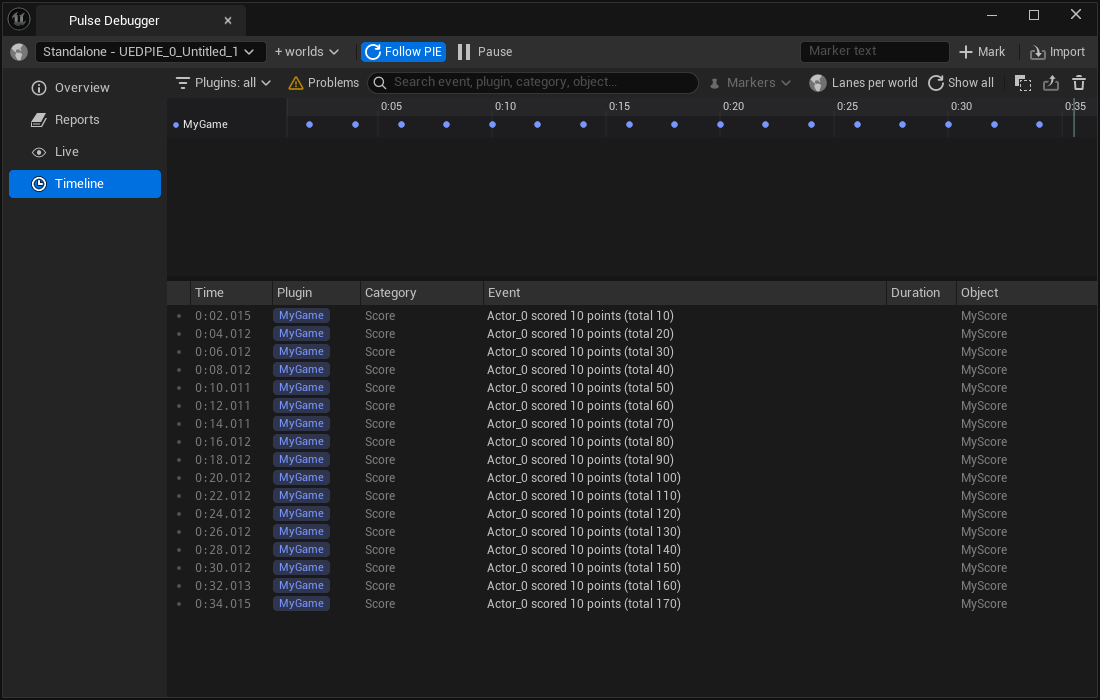
Choose Timeline. Every change of the score is an event of the source MyGame and the category Score. Use the Plugins filter to show only your events, or watch them between the events of the Pulse plugins you use. Why: Timeline.
Result
Your game describes itself in the same tools as the Pulse plugins. The same snapshot also feeds the gameplay debugger (apostrophe key, category Pulse) and the console command PulseDebugDump MyGame.
Next: Your own editor kit asset.