Save and load quests
Pulse Quest does not need a save system, but it works with Pulse Save. The bridge plugin PulseQuestSaveBridge connects the two, so the quests are saved together with everything else in your game. In this lesson you save a running quest to a slot and load it back.
This lesson continues with the quest of Your first quest.
Enable the bridge
Enable Pulse Save and Pulse Quest Save Bridge in Edit > Plugins and restart the editor. In the Pulse window, the bridge is a step of Set Up in Pulse Quest. Why: PulseSave integration.
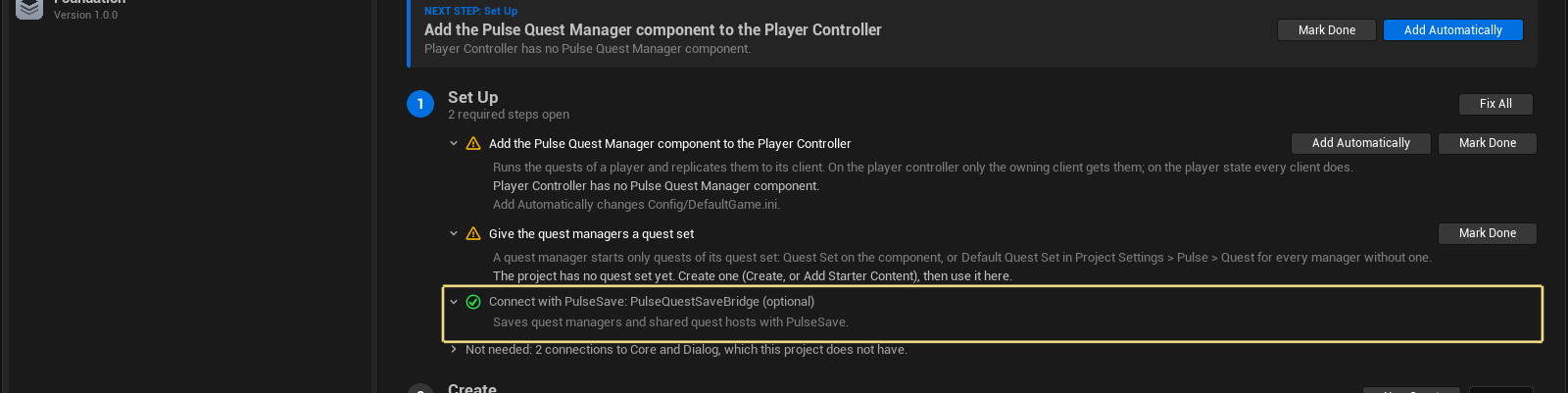
Use the saveable quest manager
The bridge step stays open while your project uses the plain quest manager. Click Add Automatically: players then get the saveable component Pulse Save Quest Manager instead of the plain one. If your player controller Blueprint has the component itself, click Open and replace it there.
The saved data is found by an identifier. On a player controller it is made from the player id, so it is the same in every session.
Add the save controller
In the Pulse window choose Pulse Save, and in Create click Add Starter Content. Drag BP_SaveExample_SaveController from /Game/Pulse/PulseSave into your level. It owns the save manager and has the events SaveGame and LoadGame, which save and load a slot.
Register the quest manager
The save controller collects actors that are saveable. A component is not an actor, so register it. Open BP_SaveExample_SaveController. After Add Collector By Class, add a second one with the class Pulse Save Register Collector and cast the result. Then add Register Object: Object is Get Component by Class (Pulse Save Quest Manager) of Get Player Controller, and Load On Register of the params is off. Compile and save.
Why: Models and collectors.
Add save and load keys
In the Level Blueprint disable the Start Quest For Actor node of the first lesson (select it and press D), so the quest does not start by itself. Add Keyboard F5 and Keyboard F9. Each gets Get Actor Of Class (BP_SaveExample_SaveController): F5 calls SaveGame, F9 calls LoadGame.
Save a running quest
Press Play and type PulseQuestStart Quest.Tutorial.FirstQuest in the console. Press F5. The save controller prints that it saved. Stop Play.
Load it back
Press Play again. The quest does not run: nothing started it. Press F9. The quest is running again, with the state it was saved in. Check the Live page of the Pulse Debugger.
Saving and loading take at least one frame, because the quest manager saves through its event queue. Pulse Save waits for it.
Result
Quest progress survives a restart.

PulseQuest saves the progress of every objective; what your own objectives count goes into their own state (an instanced struct) or into variables with the SaveGame flag. See Save and load for the quest save game and your own save systems.