Your first quest
A quest is a data asset with a StateTree that runs it. The StateTree holds objectives as tasks. A quest manager on the player runs the quests of its quest set. In this lesson you set up all four and let a quest run from the start of the level to its end.
Add the quest manager
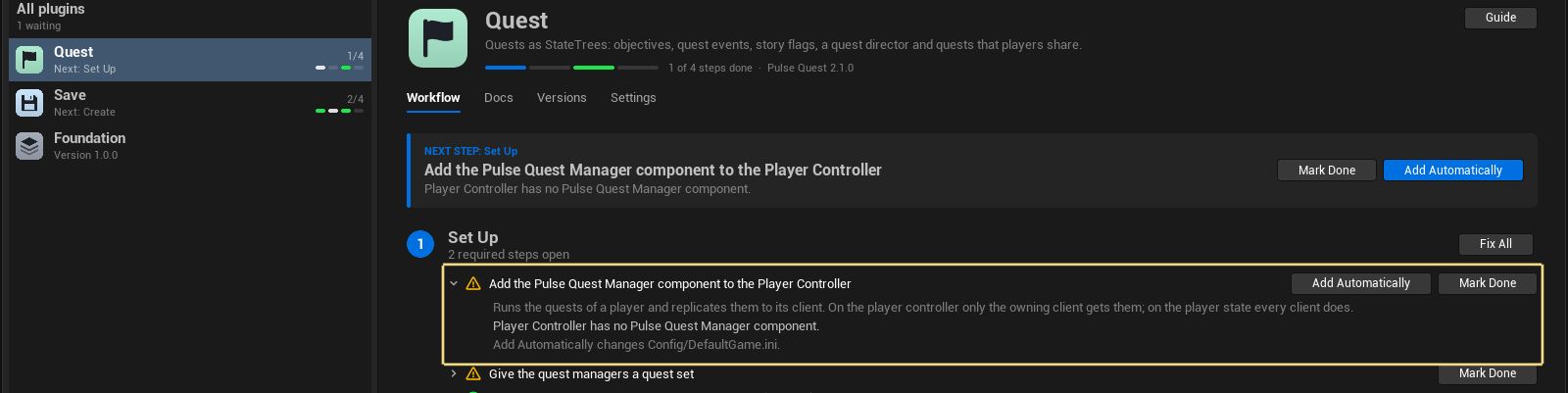
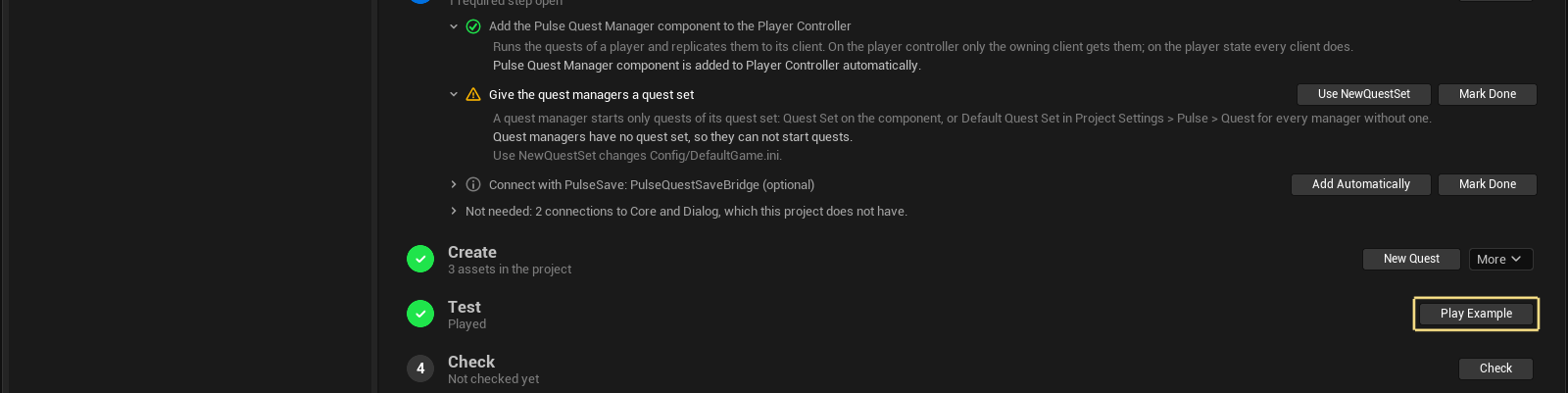
Open the Pulse window (Tools > Pulse > Pulse), choose Pulse Quest and open Set Up. Click Add Automatically on the step that adds the Pulse Quest Manager to the player controller. Why: Quest manager.
Create the quest
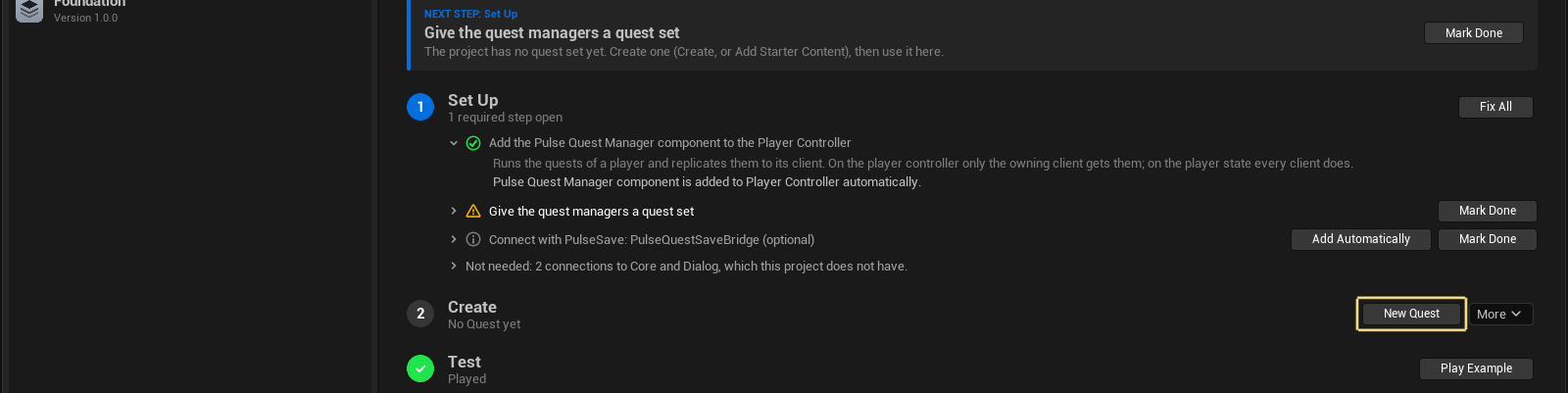
In the Content Browser choose Add > Pulse > Quest > Quest and name the asset DA_FirstQuest. Set Tag to Quest.Tutorial.FirstQuest and Display Name to My first quest. In the tag picker choose Add New Gameplay Tag if the tag does not exist yet. Why: Quests.
Create its StateTree
Choose Add > Pulse > Quest > Quest StateTree and name it ST_FirstQuest. Open DA_FirstQuest and set its State Tree to ST_FirstQuest.
Add an objective to the StateTree
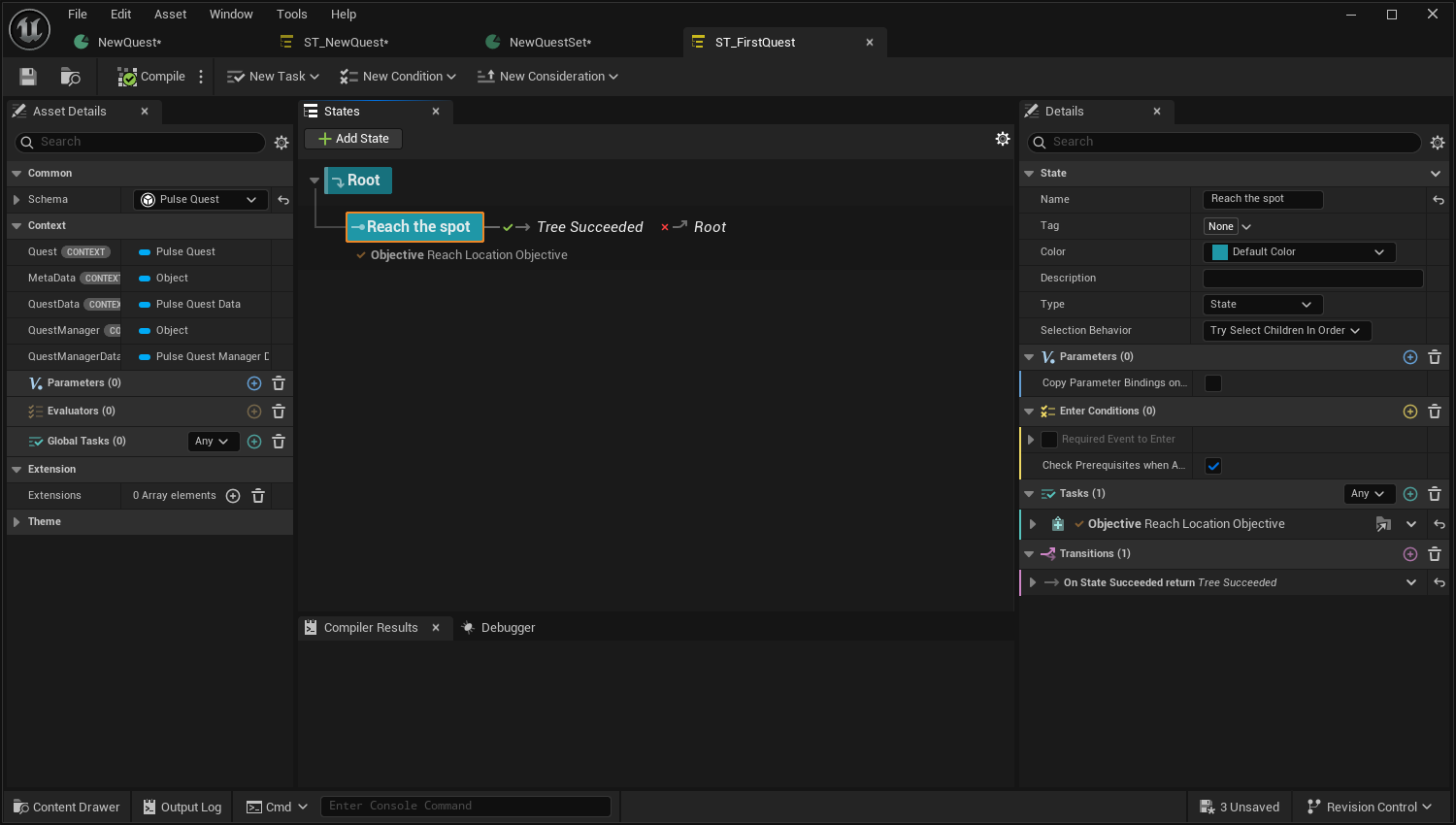
Open ST_FirstQuest. Add a state named Reach the spot under the root state. In the state, add the task Quest Objective, set Objective Class to Reach Location Objective and add one entry to Targets: a Location (a spot in your level) with radius 300. Add a transition On State Succeeded to Tree Succeeded, then click Compile.
The quest finishes when its StateTree finishes. Why: StateTree integration.
Put the quest into a quest set
Choose Add > Pulse > Quest > Quest Set, name it DA_FirstQuestSet and add DA_FirstQuest to Quests. A quest manager can only start quests of its quest set.
Give the quest managers the set
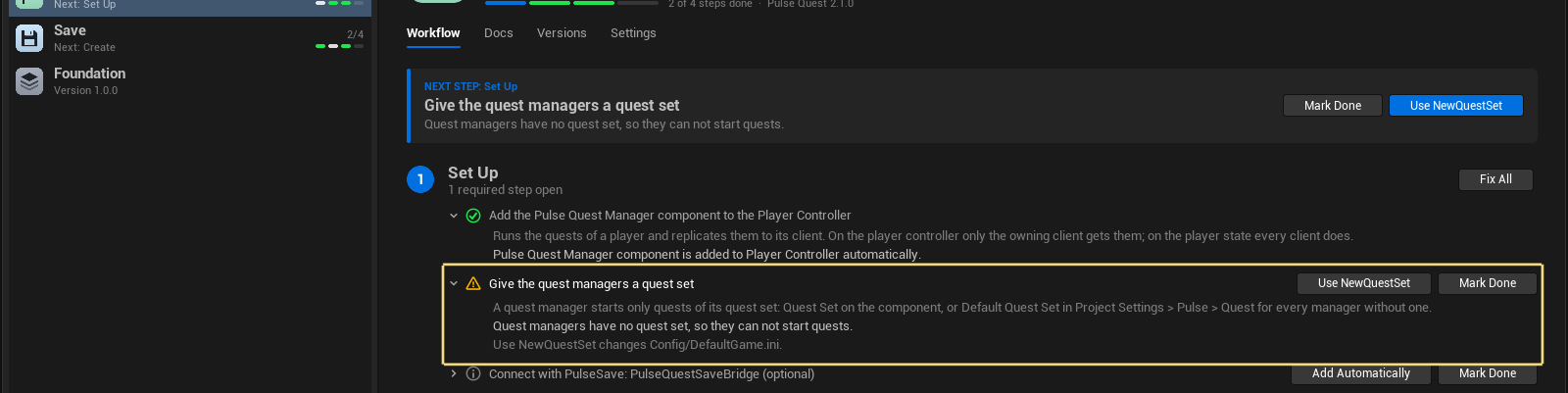
Open Set Up in the Pulse window again and click Use on the step that gives the quest managers a quest set, or set Default Quest Set in Project Settings > Pulse > Quest. Every quest manager without a set of its own uses it.
Start the quest with the level
Open the Level Blueprint (Blueprints > Open Level Blueprint). From Event BeginPlay, add Get Player Controller and then Start Quest For Actor with the controller as Actor and Quest.Tutorial.FirstQuest as Quest Tag.
Only the authority starts quests, which is the server or a standalone game. Start Quest only queues the start; the quest runs from the next tick. See Getting started.
Play
Press Play and open the console. Type Pulse.Quest.ShowEvents 1 to print quest events on the screen. The quest starts with the level. If you start it from the console instead, use PulseQuestStart Quest.Tutorial.FirstQuest.
Finish the quest
Walk to the spot you set in the StateTree. The objective completes, the StateTree reaches Tree Succeeded and the quest finishes. If you cannot find the spot, type PulseQuestComplete in the console: it completes the running objectives.
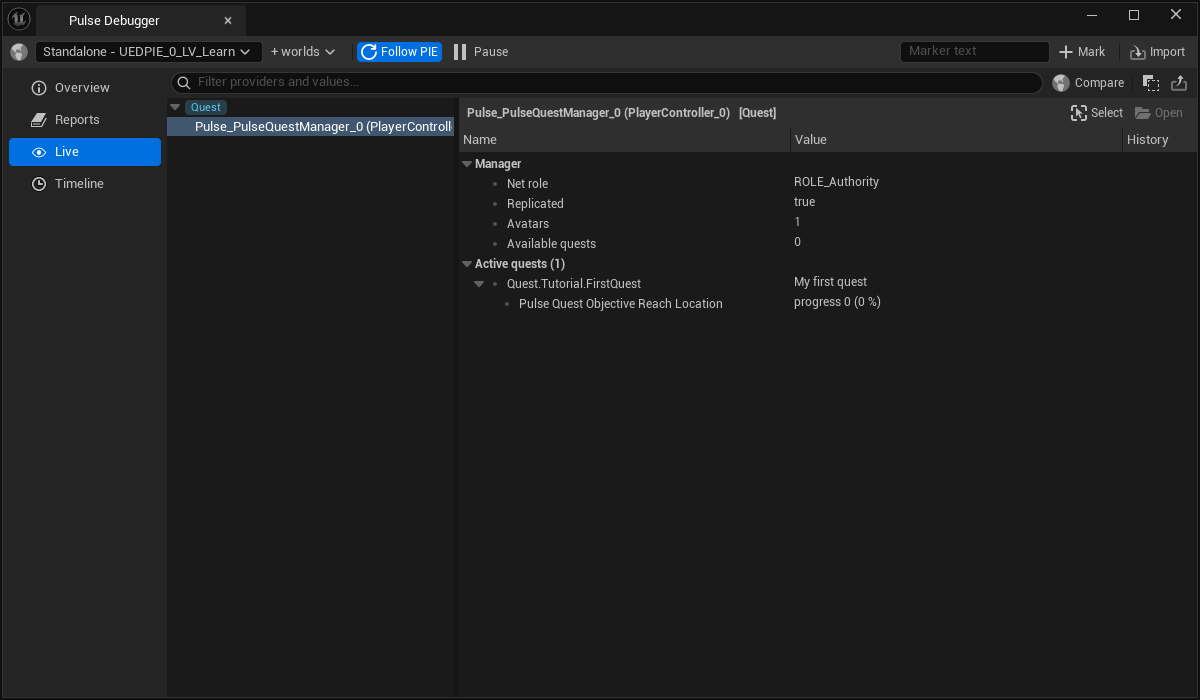
Open Tools > Debug > Pulse Debugger and the Live page. While the quest runs, the category Quest lists it with its objective. The Timeline page shows when it started and finished.
Result
The quest starts with the level and finishes after one objective.
Next: Objectives and progress. The example map and the finished assets are described in Getting started.